
1. Asennus
1.1 Pakkauksen sisältö
Varmista, että pakkauksessasi on seuraavat tuotteet:
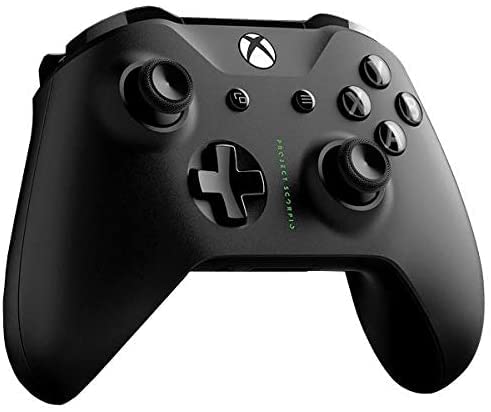
- Microsoft Xbox Wireless Controller - Project Scorpio Edition
- AA Batteries (may be included depending on retailer)
1.2 Paristojen asentaminen
To power your controller:
- Avaa ohjaimen takana olevan paristolokeron kansi.
- Aseta kaksi AA-paristoa paikoilleen varmistaen oikean napaisuuden (+ ja -).
- Sulje paristolokeron kansi kunnolla.
1.3 Yhdistäminen Xbox Oneen
To connect your controller wirelessly to an Xbox One console:
- Käynnistä Xbox One -konsoli.
- Paina ja pidä painettuna Xbox-painike
 on your controller to turn it on. The Xbox button will flash.
 - Paina Pariliitospainike on your Xbox One console (located on the front or side, depending on the model).
- Paina ja pidä painettuna 20 sekunnin kuluessa Pariliitospainike
 on the top edge of your controller (next to the USB port). The Xbox button on the controller will flash more rapidly.
 - Once the Xbox button on the controller glows solid, it is connected.
1.4 Connecting to Windows 10 PC via Bluetooth
To connect your controller to a Windows 10 PC using Bluetooth:
- Ensure your Windows 10 PC has Bluetooth enabled.
- Paina ja pidä painettuna Xbox-painike on your controller to turn it on.
- Paina ja pidä painettuna Pariliitospainike on the top edge of your controller for three seconds. The Xbox button will flash rapidly.
- Siirry tietokoneellasi kohtaan Asetukset > Laitteet > Bluetooth ja muut laitteet.
- Valitse Lisää Bluetooth tai muu laite > Bluetooth.
- Valitse Langaton Xbox-ohjain luettelosta.
- Once the Xbox button on the controller glows solid, it is connected.
A black Xbox Wireless Controller, featuring the Project Scorpio Special Edition details, with textured grips and the Xbox logo button at the top center. This image illustrates the overall design of the controller.
2. Ohjaimen käyttö
2.1 Ohjaimen asettelu ja toiminnot
The Xbox Wireless Controller features a standard layout for intuitive gameplay:
- Xbox-painike: Powers on the controller/console, opens the Guide, and indicates connection status.
- View -painiketta: Changes views or displays more information in games and apps.
- Valikko-painike: Accesses game or app menus, such as Settings or Options.
- A, B, X, Y painikkeet: Action buttons for in-game commands.
- D-tyyny: Directional pad for precise input.
- Left and Right Thumbsticks: For movement and camera control. Pressing them down acts as a button.
- Vasen ja oikea puskuri (LB, RB): Located on the top edge, typically used for quick actions.
- Vasen ja oikea liipaisin (LT, RT): Analog triggers for variable input, such as acceleration or firing.
- 3.5 mm stereokuulokeliitäntä: For connecting compatible headsets.
2.2 Using the 3.5mm Headset Jack
To use a headset with your controller:
- Plug any compatible 3.5mm stereo headset directly into the jack located at the bottom of the controller.
- Audio settings can be adjusted via the Xbox Guide or Windows sound settings.
3. Huolto
3.1 Cleaning Your Controller
Ohjaimen ulkonäön ja toimivuuden ylläpitämiseksi:
- Use a soft, dry, lint-free cloth to wipe the surface of the controller.
- Pinttyneeseen likaan, kevyesti dampKostuta liina vedellä. Vältä liiallista kosteutta.
- Do not use harsh chemicals, abrasive cleaners, or solvents, as these can damage the controller's finish.
3.2 Varastointi
When not in use, store your controller in a cool, dry place away from direct sunlight and extreme temperatures. Remove batteries if storing for extended periods to prevent leakage.
4. Vianmääritys
4.1 Controller Not Turning On
- Tarkista paristot: Ensure batteries are correctly inserted and have sufficient charge. Replace with fresh AA batteries if necessary.
- Tehosykli: Remove and reinsert the batteries, then try turning the controller on again.
4.2 Yhteysongelmat
- Yhdistä ohjain uudelleen: Follow the connection steps in Section 1.3 or 1.4 to re-pair the controller with your Xbox One or Windows 10 PC.
- Häiriöt: Ensure there are no obstructions or other wireless devices causing interference between the controller and the console/PC.
- Päivitä laiteohjelmisto: Connect the controller to your Xbox One or PC via a USB cable and check for controller firmware updates.
- Bluetooth Driver (PC): Varmista, että tietokoneesi Bluetooth-ajurit ovat ajan tasalla.
4.3 Button or Stick Malfunction
- Puhdas ohjain: Ensure no debris is lodged around buttons or sticks. Refer to Section 3.1.
- Test in Different Games/Apps: Determine if the issue is specific to one application or system-wide.
- Nollaa ohjain: In some cases, removing batteries for a few minutes can reset internal components.
5. Tekniset tiedot
| Ominaisuus | Yksityiskohta |
|---|---|
| Tuotemerkki | Microsoft |
| Mallin nimi | Project Scorpio |
| Yhteensopivat laitteet | Xbox One, Windows 10 PCs and tablets |
| Ohjaimen tyyppi | Peliohjain |
| Yhteystekniikka | Bluetooth, Langaton |
| Laitteistoalusta | Xbox One |
| Virtalähde | Paristokäyttöinen (AA) |
| Väri | Green (Project Scorpio Edition) |
6. Takuu ja tuki
This product is a Certified Refurbished item. Certified Refurbished products are tested and certified to look and work like new, with limited to no wear, by a third-party refurbisher. The refurbishing process includes functionality testing, cosmetic inspection, and repackaging.
The product is backed by a minimum 90-day warranty from the date of purchase. For specific warranty details and claims, please refer to the documentation provided by the refurbisher or contact the seller directly.
For further technical assistance or support, please visit the official Microsoft Xbox support websivustolla tai ota yhteyttä heidän asiakaspalveluunsa.