
JideTech 64H2UA
JideTech 4-Port HDMI KVM Switch User Manual
Model: 64H2UA
Merkki: JideTech
1. Tuote ohiview
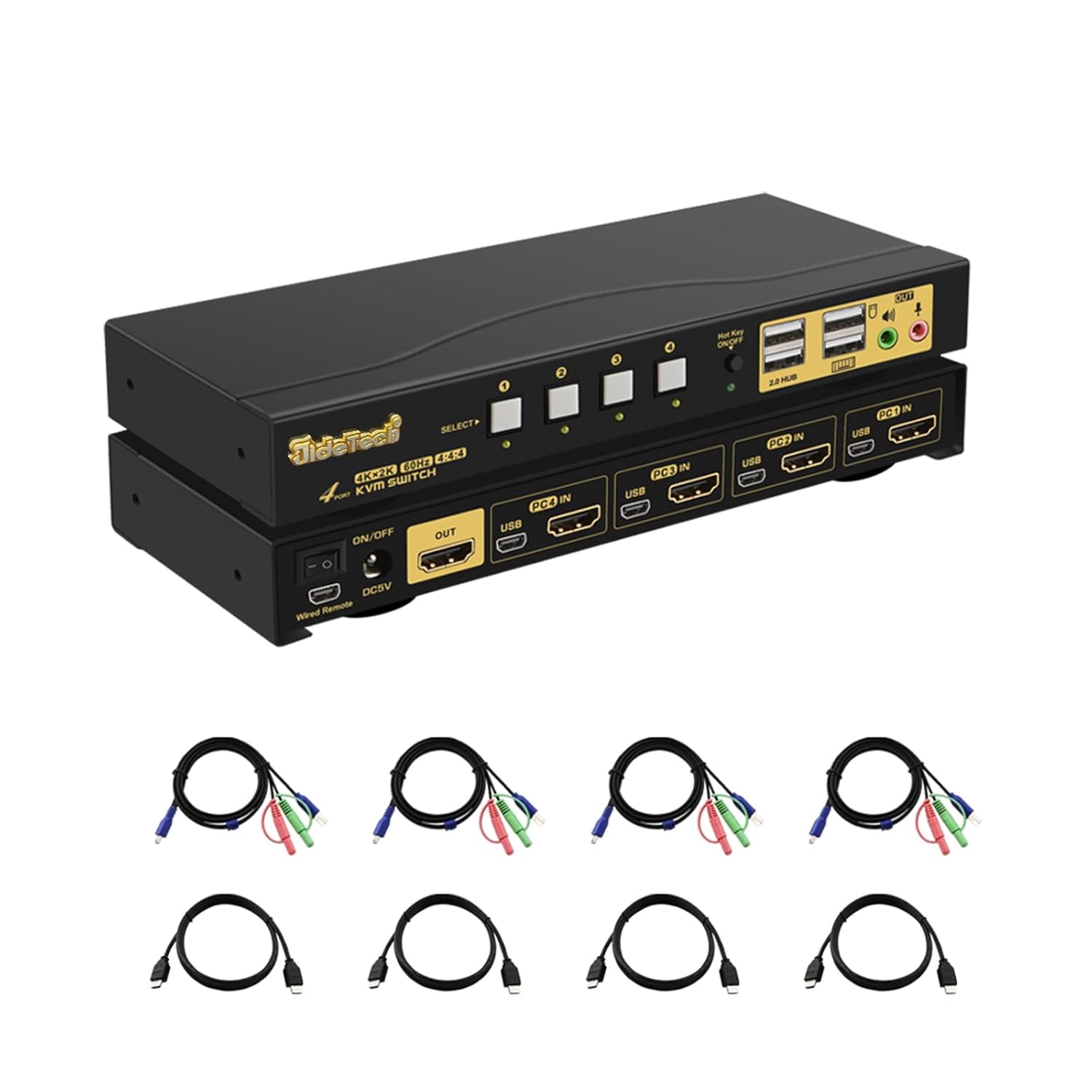
The JideTech 4-Port HDMI KVM Switch allows you to control up to four HDMI-enabled computers or devices using a single set of USB keyboard, USB mouse, and HDMI monitor. It supports Ultra HD 4K@60Hz resolution, ensuring high-quality video output. This switch is designed to streamline your workspace by reducing cable clutter and simplifying multi-system management.
Tärkeimmät ominaisuudet:
- Supports 4 HDMI devices (PC, Servers, NVR, Game Consoles, AppleTV, etc.)
- Ultra HD 4K (4096x2160) @ 60Hz resolution support
- Compatible with HDMI 2.0, EDID, HDCP2.2, HDR10
- Integrated 2-port USB 2.0 hub for sharing peripherals (printers, scanners, USB drives)
- 3.5mm microphone and speaker ports for audio input/output
- Multiple switching methods: Front Panel Button, Wired Remote, Keyboard Hotkey, Mouse Switching
- Plug and Play functionality, driver-free for most operating systems
Paketin sisältö:
- 1 x JideTech 4-Port HDMI KVM Switch
- 1 x USB-virtalähde
- 4 x USB 3.0 kaapelia
- 4 x HDMI kaapelit
- 1 x langallinen kaukosäädin
- 1 x Käyttöohje (tämä asiakirja)
2. Asennus ja asennus
Follow these steps to properly set up your KVM switch:
- Virran sammutuslaitteet: Varmista, että kaikki tietokoneet ja näyttö on sammutettu ennen kuin teet mitään liitäntöjä.
- Yhdistä näyttö: Connect your HDMI monitor to the 'OUT' HDMI port on the KVM switch.
- Tietokoneiden liittäminen (HDMI): Connect the HDMI output of each computer (PC1, PC2, PC3, PC4) to the corresponding 'PC IN' HDMI ports on the KVM switch.
- Tietokoneiden liittäminen (USB): Connect the USB 3.0 cable from each computer's USB port to the corresponding 'USB IN' ports on the KVM switch. These cables transmit keyboard, mouse, and USB hub data.
- Yhdistä näppäimistö ja hiiri: Plug your USB keyboard and USB mouse into the dedicated keyboard and mouse USB ports on the front panel of the KVM switch.
- Liitä USB-oheislaitteet: If desired, connect additional USB devices (e.g., printer, USB drive) to the '2.0 HUB' ports on the front panel.
- Yhdistä ääni: Connect your speakers or headphones to the green audio output port and your microphone to the pink microphone input port on the front panel.
- Liitä virta: Plug the provided USB power adapter into the 'DC5V' port on the KVM switch and then into a power outlet.
- Virta päälle: Power on the KVM switch using the 'ON/OFF' switch, then power on your monitor and computers.


3. Käyttöohjeet
The JideTech KVM Switch offers multiple convenient ways to switch between connected computers:
3.1. Tilanvaihto

- Front Panel Button Switching:
Press the 'SELECT' buttons (1, 2, 3, 4) on the front panel of the KVM switch to directly switch to the corresponding computer input.

Figure 6: The Hotkey On/Off switch on the KVM. - Wired Remote Control Switching:
Use the included wired remote control to switch between inputs. Press the numbered buttons (1, 2, 3, 4) to select the desired computer. The 'AUTO' button can initiate an auto-scan function.
- Keyboard Hotkey Switching:
Ensure the 'Hot Key On/Off' switch on the front panel is in the 'ON' (green light) position. Use the following hotkey commands:
- Switch to PC1: Press Oikea CTRL siis kahdesti 1, sitten Enter.
- Switch to PC2: Press Oikea CTRL siis kahdesti 2, sitten Enter.
- Switch to PC3: Press Oikea CTRL siis kahdesti 3, sitten Enter.
- Switch to PC4: Press Oikea CTRL siis kahdesti 4, sitten Enter.
- Disable Beep Sound: Press Oikea CTRL siis kahdesti B, sitten Enter.
- Enable Loudspeaker (Audio): Press Oikea CTRL siis kahdesti P, sitten Enter.
Note: Hotkey functionality may vary with certain specialized keyboards (e.g., gaming or mechanical keyboards). If issues arise, try connecting the keyboard to a USB hub connected to the KVM's USB 2.0 hub port.
- Hiiren vaihto:
Move the mouse cursor to the far right edge of the screen and quickly move it right again. This will switch to the next active input. Repeat to cycle through inputs.
3.2. Audio Capabilities
The KVM switch includes 3.5mm audio input and output ports, allowing you to share speakers and a microphone across all connected computers. Simply plug your audio devices into the corresponding ports on the front panel.

4. Huolto
To ensure the longevity and optimal performance of your JideTech KVM Switch, follow these maintenance guidelines:
- Puhdistus: Use a soft, dry cloth to clean the exterior of the KVM switch. Avoid using liquid cleaners or aerosols, which may damage the device.
- Ilmanvaihto: Varmista, että KVM-kytkin on hyvin ilmastoidussa tilassa ylikuumenemisen estämiseksi. Älä tuki tuuletusaukkoja.
- Kaapelin hallinta: Keep cables organized and untangled to prevent damage to ports and cables. Avoid excessive bending or pulling of cables.
- Virtalähde: Always use the original power adapter provided with the KVM switch.
- Varastointi: If storing the device for an extended period, disconnect all cables and store it in a cool, dry place.
5. Vianmääritys
Jos KVM-kytkimen kanssa ilmenee ongelmia, katso seuraavat yleiset ongelmat ja ratkaisut:
- Ei näyttöä tai välkkyvä näyttö:
- Ensure all HDMI cables are securely connected to both the KVM switch and the computers/monitor.
- Verify that the KVM switch is powered on.
- Try using different HDMI cables, especially if they are not the ones provided.
- Check the display resolution settings on your computers. Ensure they are compatible with 4K@60Hz or a supported lower resolution.
- Power cycle the KVM switch and all connected devices.
- Keyboard or Mouse Unresponsive:
- Ensure the keyboard and mouse are plugged into the dedicated USB ports on the front panel.
- Try unplugging and replugging the keyboard/mouse.
- If using a specialized keyboard/mouse (e.g., gaming, mechanical, or wireless with a dongle), connect them to a powered USB 2.0 hub, then connect the hub to one of the KVM's '2.0 HUB' ports.
- Ensure the USB 3.0 cables from the computers to the KVM are securely connected.
- Disable hotkey switching if it interferes with your specific keyboard/mouse.
- No Audio or Distorted Audio:
- Check that speakers/headphones and microphone are correctly plugged into the 3.5mm audio ports.
- Verify audio output settings on your computer.
- Ensure the 'Loudspeaker' hotkey (Right CTRL twice, then P, then Enter) is enabled if needed.
- Loud Beep Sound When Switching:
- The beep sound can be disabled using the hotkey command: Press Oikea CTRL siis kahdesti B, sitten Enter.
- Auto-Scan Not Working:
- Ensure all connected computers are powered on and sending a video signal.
- Check the wired remote control connection.
If the problem persists after trying these solutions, please contact JideTech customer support for further assistance.
6. Tekniset tiedot
| Ominaisuus | Kuvaus |
|---|---|
| Mallinumero | 64H2UA |
| Tuotteen mitat | 2.95 x 0.97 x 8.07 tuumaa |
| Paino | 2.93 puntaa |
| Videon resoluutio | Up to 4096x2160@60Hz (4K@60Hz) |
| HDMI standardi | HDMI 2.0 |
| HDCP-tuki | HDCP 2.2 |
| HDR-tuki | HDR10 |
| USB-portit | 2 x USB 2.0 Hub, Dedicated Keyboard/Mouse USB ports |
| Audioportit | 3.5mm Stereo Audio Out, 3.5mm Microphone In |
| Vaihtomenetelmät | Front Panel Button, Wired Remote, Keyboard Hotkey, Mouse Switching |
| Käyttö Voltage | 5 volttia |
| Yhteensopivat käyttöjärjestelmät | Windows 10/7/2000/XP/Vista, Linux, Mac, Debian, Ubuntu, Fedora, Raspbian, etc. |


7. Takuu ja tuki
For warranty information and technical support, please refer to the official JideTech website or contact their customer service directly. Details regarding product registration, warranty claims, and technical assistance can typically be found on the manufacturer's support pages.
Yhteystiedot: Käy osoitteessa JideTech Store on Amazon tai heidän virkamiehensä websivustolta ajantasaisimmat tukiyhteystiedot.
Ask a question about this manual
Ask about setup, troubleshooting, compatibility, parts, safety, or missing instructions. Manuals+ will review the question and use this page’s manual context to help answer it.