
Johdanto
The Pknight 2.4G Wireless WiFi DMX EasyNode Plug is designed to provide seamless wireless control for your DMX512 lighting fixtures. This compact device simplifies your setup by eliminating the need for extensive XLR cabling and traditional physical consoles. It supports various operational modes to suit different control environments and automatically saves your settings for convenience. Experience enhanced flexibility and extended range for your lighting control needs.
Asennus
Follow these steps to set up your Pknight EasyNode Plug:
- Virta päälle: Connect the EasyNode Plug to a power source using the provided USB cable. The LED indicator will blink slowly, indicating a hot spot signal has been generated.
- Connect to DMX Fixture: Plug the EasyNode Plug directly into the DMX IN port of your DMX-compatible lighting fixture (e.g., a DMX PAR light).
- Yhdistä Wi-Fi-verkkoon: On your mobile device (iPad, iPhone, Android phone), go to Wi-Fi settings and connect to the Pknight Wi-Fi network. The default password is 'PKNIGHT.WIFI'. Once connected, the LED indicator on the EasyNode Plug will blink fast, signifying that a DMX signal is being received.
- Lataa sovellus: Download the 'WIFI-DMX PRO' app from your device's app store. You can scan the QR code below for direct access.

Image: Pknight EasyNode Plug connected to a smartphone, illustrating the wireless control setup.

Image: QR code to download the free WIFI-DMX PRO app, along with various screenshots of its user interface for color and effect control. Download App Here
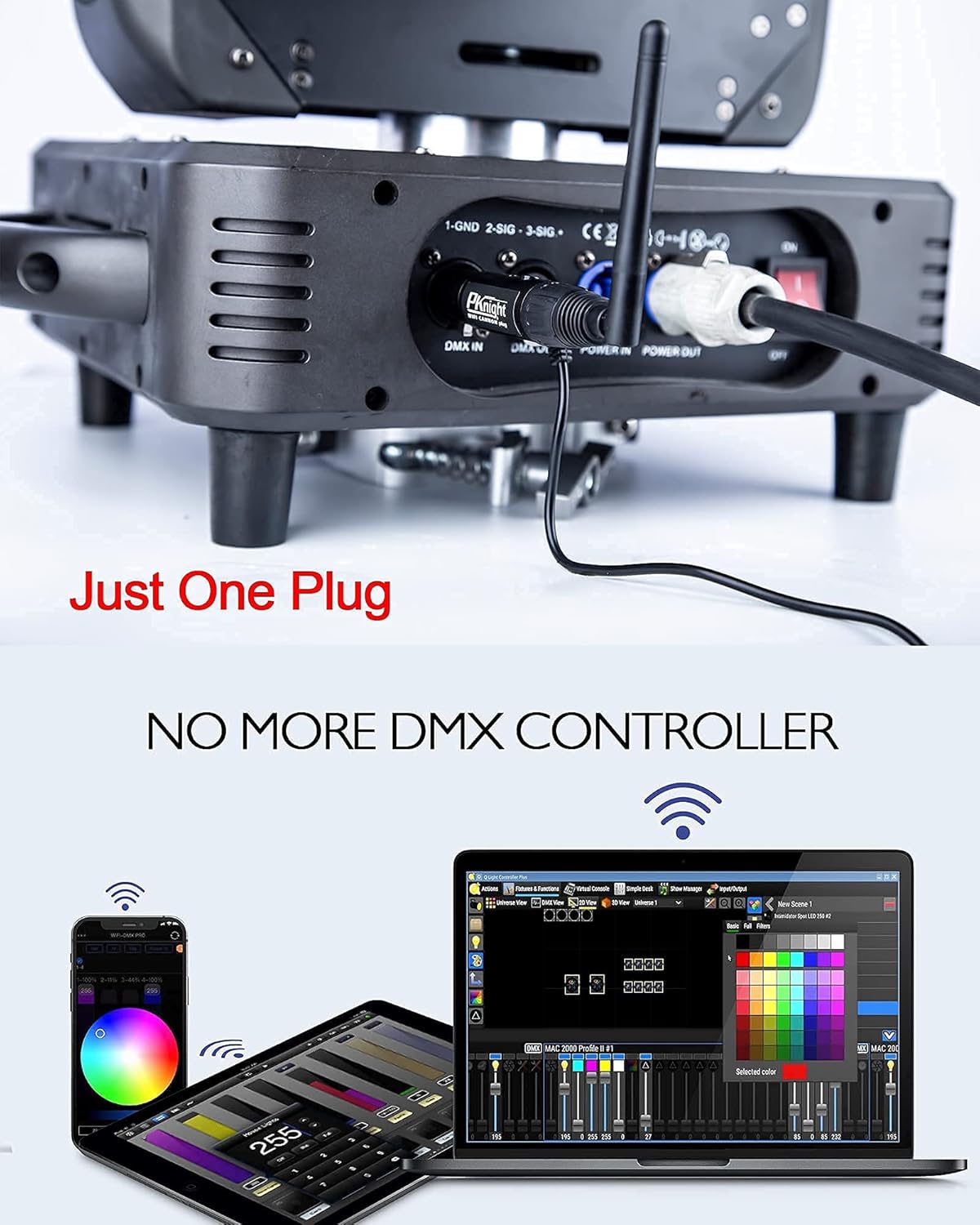
Image: The Pknight EasyNode Plug directly connected to a DMX light, highlighting its 'Just One Plug' design that eliminates the need for a traditional DMX controller.

Image: Detail of the EasyNode Plug, pointing out the Function Button and LED Indicator for status feedback.
Asennusvideo-opastus
Video: This tutorial demonstrates the direct mode setup for the Pknight EasyNode Plug, showing how to power it on, connect to a DMX light, and establish Wi-Fi communication for basic control.
Toimintatilat
The Pknight EasyNode Plug supports multiple operating modes to provide flexible control over your DMX fixtures:
- Suora tila: Connect your mobile device directly to the EasyNode Plug's Wi-Fi hotspot for immediate control. Ideal for quick setups and single-device control.
- Reitittimen tila: Connect the EasyNode Plug to an existing Wi-Fi router. This mode allows for extended range (up to 1500 wireless feet with a powerful router) and enables multiple devices to control the lighting system simultaneously.
- EasyLink Mode: This mode simplifies the connection process, allowing for quick pairing with compatible devices.
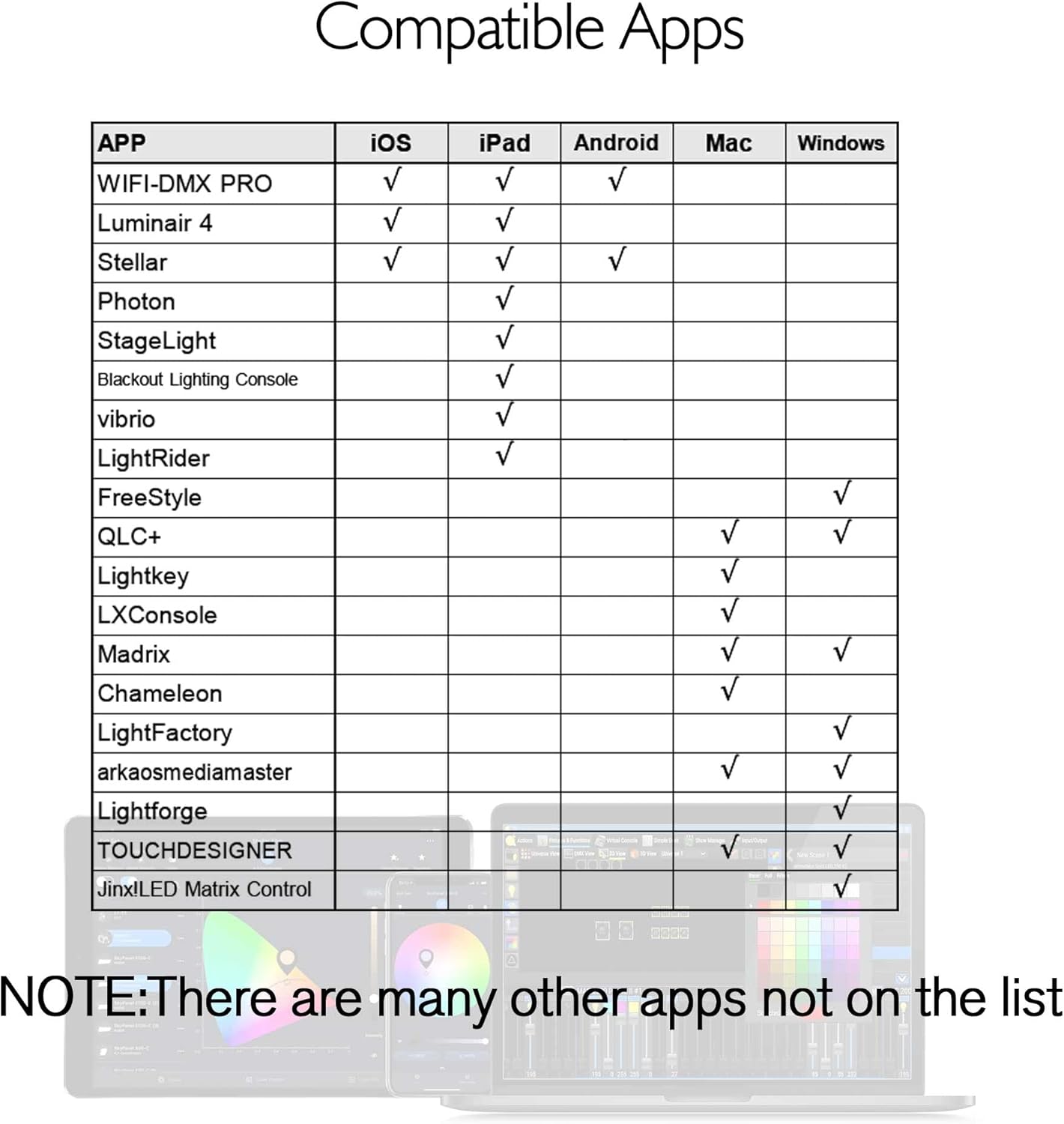
Image: Diagram illustrating the wireless connection between the Pknight EasyNode Plug (2.4G Receiver) and a 2.4G Transmitter, enabling wireless control of multiple DMX lights.

Image: Diagram depicting the Router Mode setup, where multiple Pknight EasyNode Plugs connect to a central Wi-Fi router, extending the wireless control range up to 1500 feet.
App Interface Tutorial
Video: This video provides a comprehensive tutorial on using the WIFI-DMX PRO app, covering various features like channel control, color selection, scene generation, and fixture patching for effective DMX lighting management.
Huolto
To ensure the longevity and optimal performance of your Pknight EasyNode Plug, follow these maintenance guidelines:
- Puhdistus: Pyyhi laite säännöllisesti pehmeällä, kuivalla liinalla pölyn ja roskien poistamiseksi. Vältä voimakkaiden kemikaalien tai hankaavien materiaalien käyttöä.
- Varastointi: When not in use, store the EasyNode Plug in its provided EVA bag in a cool, dry place away from direct sunlight and extreme temperatures.
- Käsittely: Handle the device with care to prevent physical damage to the connectors or antenna.
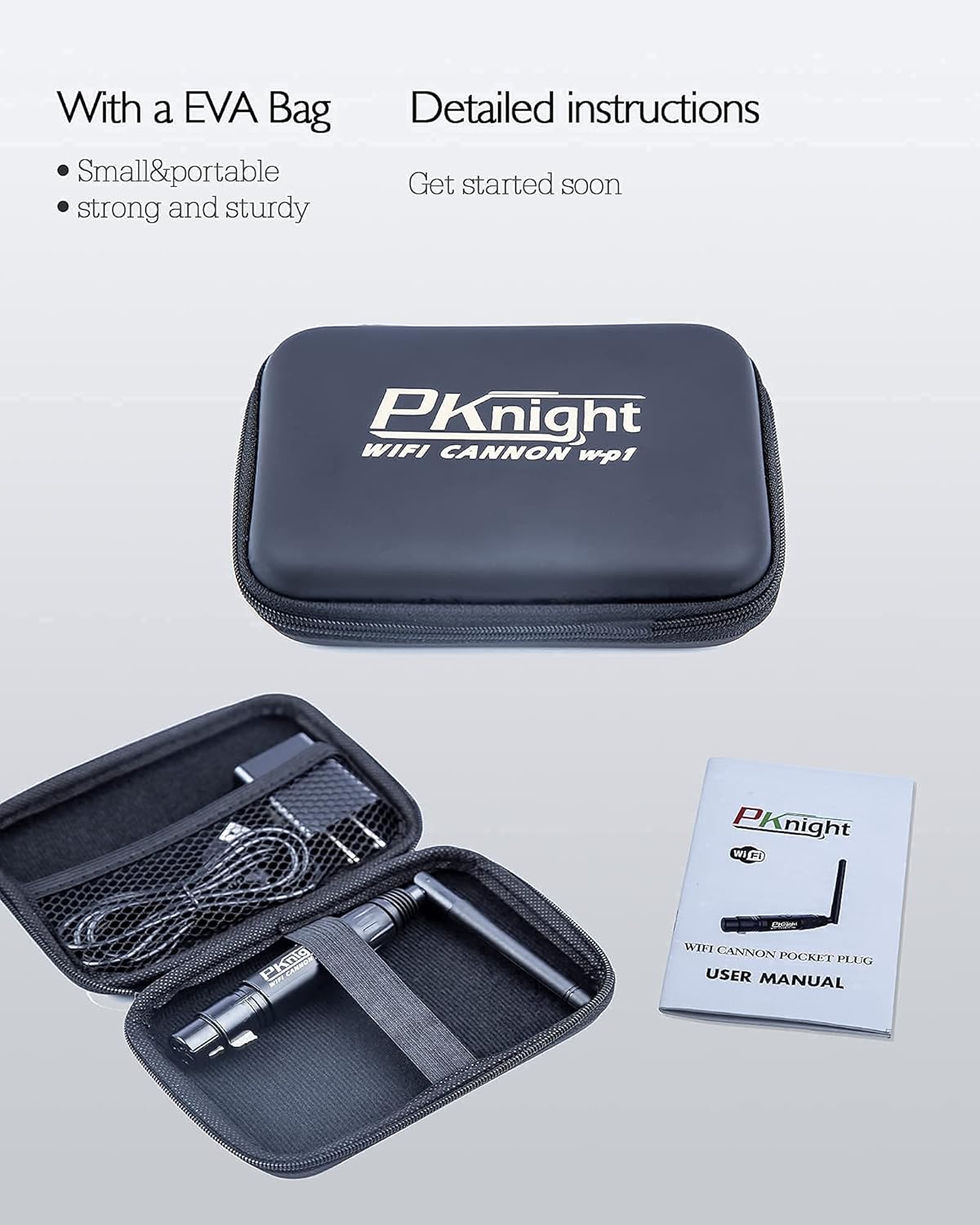
Image: The Pknight EasyNode Plug and its accessories neatly packed in a durable EVA bag, emphasizing its portability and the inclusion of a detailed user manual.
Vianetsintä
If you encounter issues with your Pknight EasyNode Plug, consider the following common solutions:
- Ei Wi-Fi-signaalia: Ensure the device is properly powered on. Try restarting the EasyNode Plug and your mobile device. Verify that the Wi-Fi password is entered correctly.
- Ei DMX-signaalia: Check if the EasyNode Plug is securely connected to the DMX IN port of your fixture. Ensure your DMX fixture is powered on and set to the correct DMX mode.
- Sovellusten yhteysongelmat: Close and reopen the WIFI-DMX PRO app. Ensure your mobile device's Wi-Fi is connected to the Pknight network.
- Häiriöt: If experiencing signal drops, try moving the EasyNode Plug closer to your mobile device or router (in Router Mode). Minimize other 2.4Ghz wireless devices in the area.
For more detailed troubleshooting steps, please refer to the comprehensive user manual included with your product or contact Pknight customer support.
Tekniset tiedot
| Ominaisuus | Yksityiskohta |
|---|---|
| Tuotteen paino | 8.8 unssia |
| Tuotteen mitat | 6.5 x 4.5 x 1.8 tuumaa |
| ASIN | B091DS89M4 |
| Tuotteen mallinumero | FI-3P |
| Päivämäärä ensimmäinen saatavilla | 31. maaliskuuta 2021 |
Takuu ja tuki
Your Pknight EasyNode Plug comes with a detailed user manual to assist you with setup and operation. For any questions or support needs, Pknight is committed to providing prompt assistance. All inquiries will be answered within 24 hours.
Lisätietoja saat osoitteesta Käyttöopas (PDF).