
VENZ R4040-V2
VENZ Indoor Camera R4040-V2 User Manual
Model: R4040-V2 | Brand: VENZ
Tuote loppuview
The VENZ Indoor Camera R4040-V2 is a 1080P HD home security camera designed for indoor use. It features 360° pan-tilt-zoom (PTZ) capabilities, two-way audio, motion detection, and night vision, making it suitable for monitoring babies, pets, or general home security.
Tärkeimmät ominaisuudet
- 1080p HD resoluutio: Tarjoaa selkeän ja sulavan videon.
- 360° PTZ-toiminto: Offers 360° horizontal rotation and 104° vertical view kattavaa kattavuutta varten.
- Kaksisuuntainen ääni: Sisäänrakennettu mikrofoni ja kaiutin viestintää varten.
- Liikkeentunnistus ja seuranta: Sends instant alerts and tracks detected movement.
- Pimeänäkö: IR LEDs provide clear vision up to 28 feet in low light.
- Useita tallennusvaihtoehtoja: Supports cloud storage and up to 128GB Micro SD card (not included).
- Ääniohjauksen yhteensopivuus: Works with Echo Show/Spot/Fire TV and Google Nest Hub/Chromecast.
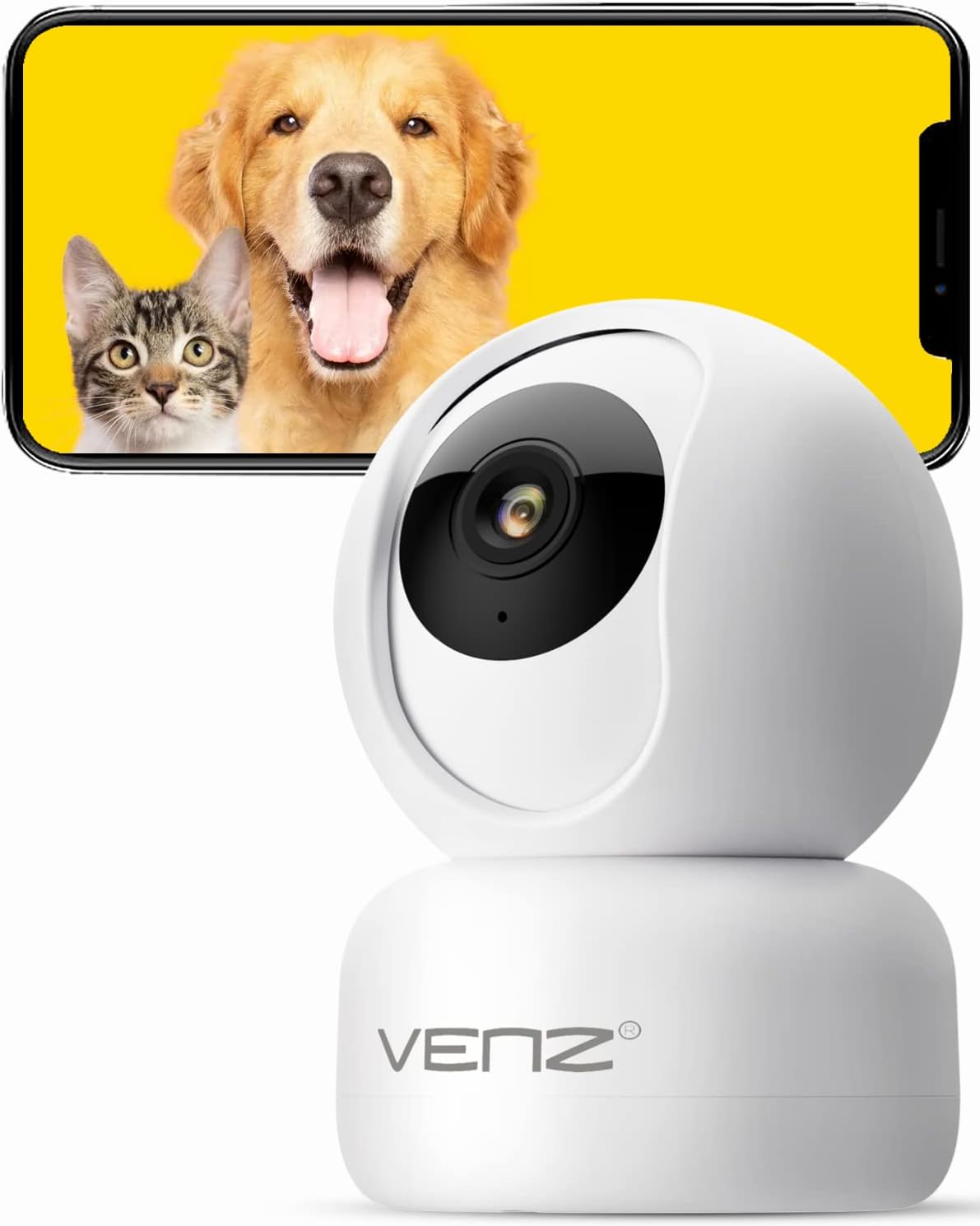
Image: The VENZ Indoor Camera R4040-V2, a white dome-shaped camera, shown next to a smartphone displaying live feed of a dog and a cat, illustrating its use for pet monitoring.
Mitä laatikossa on
Varmista, että kaikki osat ovat mukana ennen asennuksen jatkamista.
- Älykäs PTZ-kamera x 1
- USB-kaapeli x 1
- Käyttöohje x 1
- Asennusteline x 1
- Sovitin x 1
- Ruuvipussi x 1
- Rei'itetty tarra x 1
- Palauta pin x 1
Asennusopas
1. Kytke kameraan virta
- Connect the provided USB cable to the camera's power port.
- Plug the USB cable into the adapter.
- Plug the adapter into a standard electrical outlet (DC 5V).
- Odota, että kameran merkkivalo vilkkuu, mikä osoittaa, että se on valmis asennettavaksi.
2. Sovelluksen asennus ja tilin luominen
The VENZ Indoor Camera operates via the Woox Home App.
- Download the "Woox Home" app from the Google Play Kauppa or Apple App Store.
- Avaa sovellus ja rekisteröidy uudelle tilille, jos sinulla ei vielä ole tiliä, tai kirjaudu sisään olemassa olevilla tunnuksilla.

Image: The Woox Home App logo, indicating compatibility with Amazon Alexa and Google Assistant, and showing the app interface on a smartphone and a smart display.
3. Kameran lisääminen sovellukseen
- In the Woox Home app, tap the "+" icon to add a new device.
- Valitse laiteluettelosta "Kamera" tai "Turvakamera".
- Yhdistä kamera 2.4 GHz:n Wi-Fi-verkkoon noudattamalla näytön ohjeita. Varmista, että Wi-Fi-salasanasi on oikein.
- The app will display a QR code. Position your camera to scan this QR code from your phone screen. Hold the phone approximately 6-8 inches (15-20 cm) from the camera lens.
- Once the camera successfully scans the QR code, it will emit a confirmation sound. Tap "I heard a prompt" in the app.
- The camera will then connect to your Wi-Fi network. Once connected, you can name your camera and begin using it.

Image: A hand holding a smartphone displaying a QR code, with the VENZ Indoor Camera positioned to scan it, illustrating the quick setup process.
4. Kameran kiinnittäminen (valinnainen)
The camera can be placed on a flat surface or mounted to a wall or ceiling using the included bracket.
- Choose a suitable location for mounting, ensuring it has a clear view ja on Wi-Fi-yhteyden kantaman sisällä.
- Use the punched sticker to mark the drilling positions on the wall/ceiling.
- Poraa reiät ja aseta seinäankkurit niihin.
- Attach the mounting bracket to the wall/ceiling using the provided screws.
- Secure the camera onto the mounting bracket by twisting it into place.
Kameran käyttö
Elää View ja PTZ-ohjaus
- Avaa Woox Home -sovellus ja valitse kamerasi laiteluettelosta.
- Live-videolähetys tulee näkyviin.
- Use the on-screen joystick or directional arrows to pan (rotate horizontally 360°) and tilt (rotate vertically 104°) the camera lens.
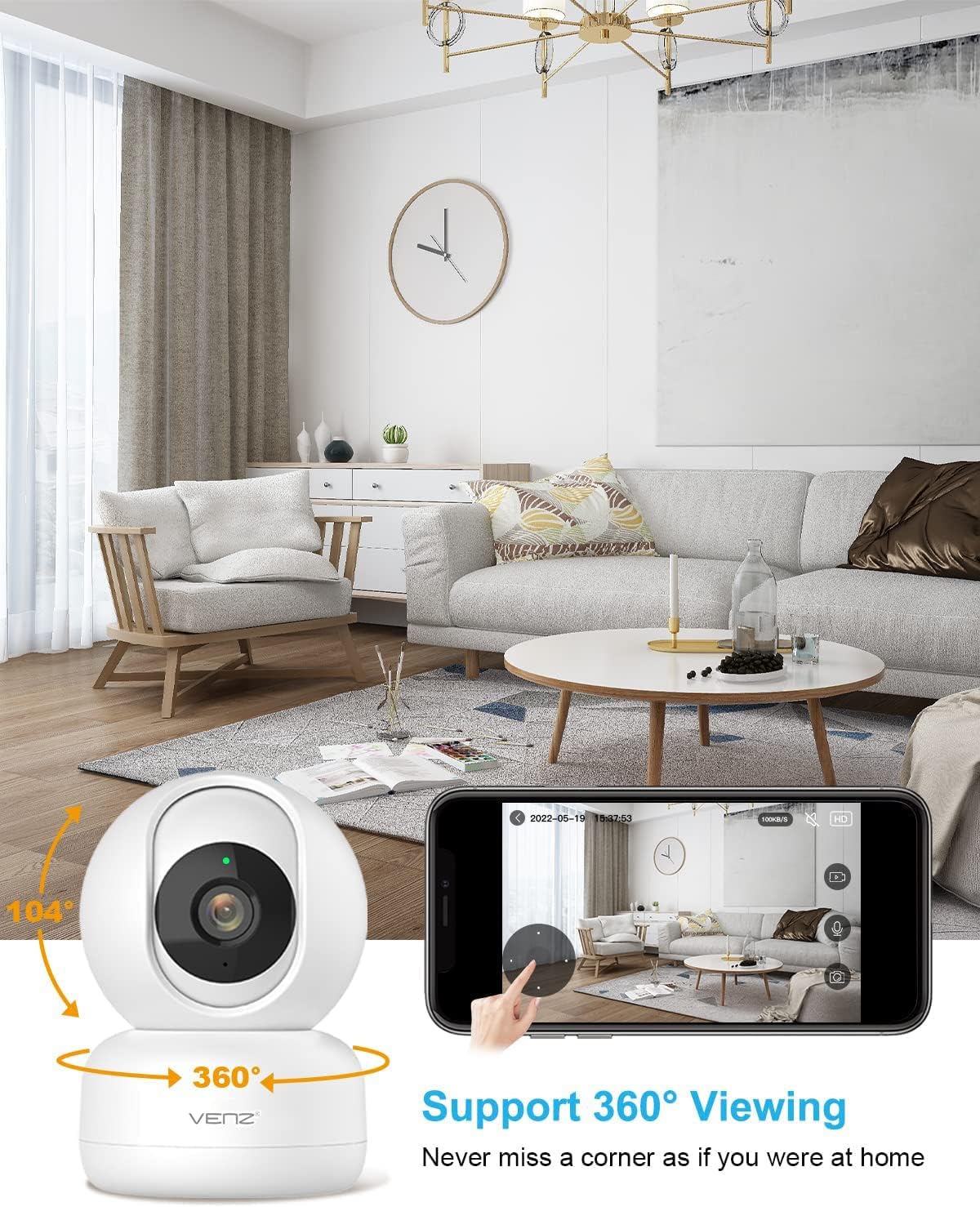
Image: The VENZ Indoor Camera with arrows indicating its 360-degree horizontal rotation and 104-degree vertical tilt capabilities, alongside a smartphone displaying the live view käyttöliittymä.
Kaksisuuntainen ääni
- Liven aikana view, napauta sovelluksen mikrofonikuvaketta puhuaksesi kameran kautta.
- Napauta kaiutinkuvaketta kuunnellaksesi ääntä kameran ympäristöstä.

Image: Illustrations showing a woman speaking into her phone and a child interacting with a dog near the camera, demonstrating the two-way audio communication feature.
Liikkeentunnistus ja seuranta
- Navigate to the camera settings within the Woox Home app.
- Enable "Motion Detection" to receive instant alerts on your phone when movement is detected.
- Activate "Motion Tracking" for the camera to automatically follow and keep the detected subject within its field of view.
- Adjust sensitivity levels and set activity areas as needed.

Image: A child and an adult entering a room, with the camera's motion tracking feature highlighted by red boxes, and a smartphone displaying a "Motion Tracking Detection" notification from the Woox Home app.

Image: Two cats in a living room, with one jumping and the other sitting, demonstrating the camera's motion tracking capability by highlighting the subjects with yellow crosses, and a smartphone showing real-time motion detection notifications.
Night Vision
- Kamera siirtyy automaattisesti yönäkötilaan heikossa valaistuksessa.
- Infrared LEDs provide clear black-and-white video up to 28 feet (8.5 meters).
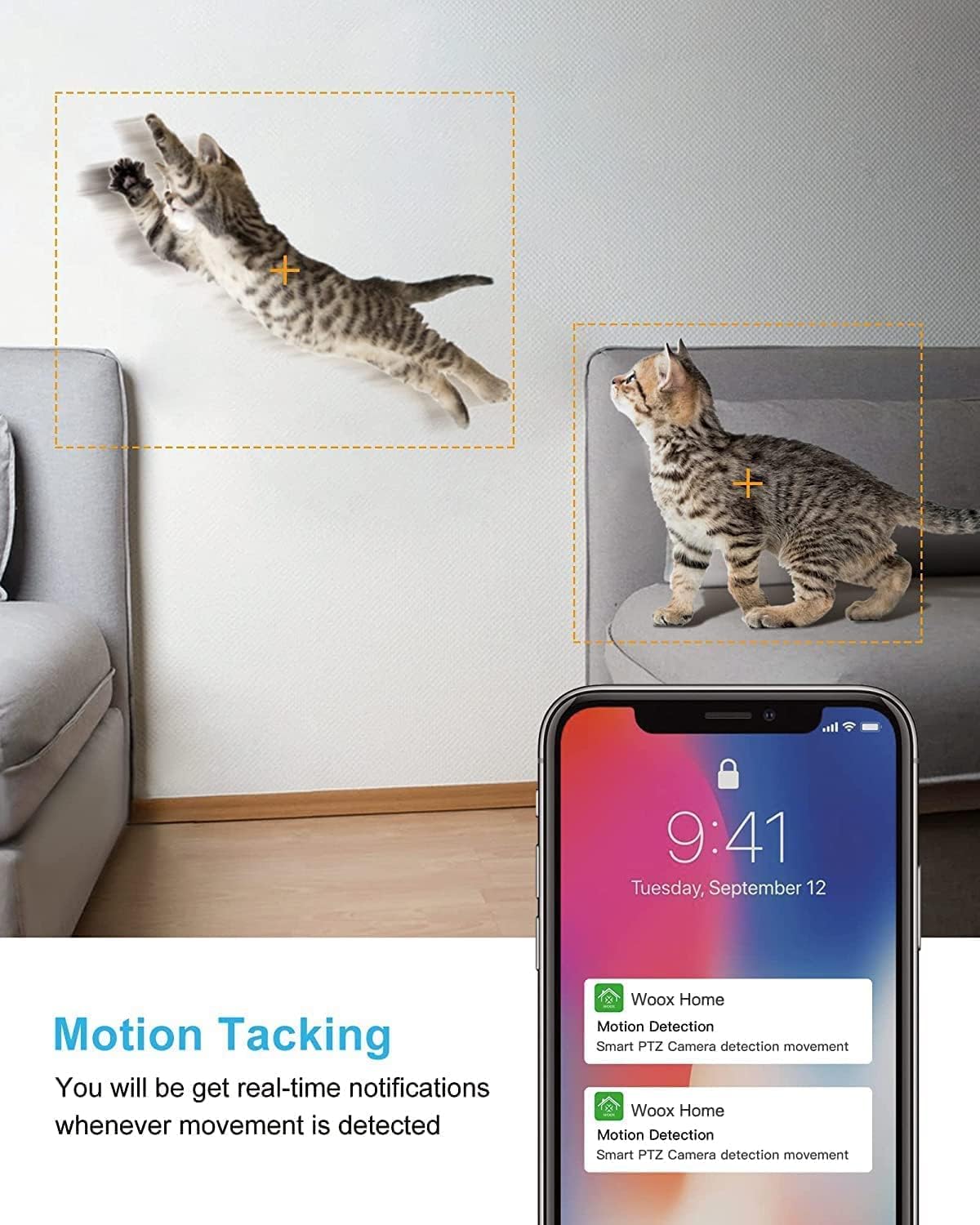
Image: A split image showing a baby sleeping in a crib in a dark room (top, black and white) and a woman viewing a clear image on her phone in bed (bottom), illustrating the camera's clear night vision capability.
Tallennus ja toisto
- Micro SD -kortti: Aseta Micro SD -kortti (enintään 128 Gt, ei sisälly toimitukseen) kameran korttipaikkaan tallenteiden paikallista tallennusta varten.
- Pilvitallennus: Subscribe to the optional cloud storage service via the Woox Home app for secure, encrypted data storage.
- Pääsy tallennettu footagsovelluksen "Toisto"- tai "Historia"-osion kautta.

Image: The VENZ Indoor Camera with an arrow pointing to its Micro SD card slot and a cloud icon with a shield, illustrating both local (Micro SD) and cloud storage options for recording and playback.
Multi-User and Multi-Device Access
- Share camera access with family members through the Woox Home app.
- Sovellus tukee viewing multiple Wi-Fi cameras simultaneously (up to 4 live videos on one screen).
Huolto
- Puhdistus: Puhdista kameran linssi ja runko pehmeällä, kuivalla liinalla. Vältä hankaavia puhdistusaineita tai liuottimia.
- Laiteohjelmistopäivitykset: Regularly check for and install firmware updates through the Woox Home app to ensure optimal performance and security.
- Verkon vakaus: Ensure your Wi-Fi network is stable and strong to prevent connection issues and maintain continuous monitoring.
- SD-kortin hallinta: If using a Micro SD card, periodically check its storage capacity and format it if necessary to prevent data corruption.
Vianetsintä
| Ongelma | Mahdollinen syy | Ratkaisu |
|---|---|---|
| Kamera offline-tilassa/Wi-Fi-yhteyttä ei voi muodostaa |
|
|
| Poor video quality/Lagging feed |
|
|
| Liiketunnistus ei toimi |
|
|
| No audio/Poor two-way audio |
|
|
| SD-kortti ei tallenna |
|
|
Tekniset tiedot
| Ominaisuus | Yksityiskohta |
|---|---|
| Mallinumero | R4040-V2 |
| Sisä-/ulkokäyttö | Sisätiloissa |
| Videon sieppaustarkkuus | 1080p |
| Kenttä View | 360 astetta (panorointi), 104 astetta (kallistus) |
| Yönäköalue | 28 jalkaa (8.5 metriä) |
| Yhteysprotokolla | Wi-Fi (vain 2.4 GHz) |
| Virtalähde | Johdollinen sähkölaite (DC 5V) |
| Ohjaimen tyyppi | Google Assistant, Amazon Alexa |
| Tallennusvaihtoehdot | Pilvitallennustila, Micro SD -kortti (jopa 128 Gt) |
| Mitat (P x L x K) | 2.91 x 2.91 x 4.21 tuumaa |
| Tuotteen paino | 13.1 unssia |
| Materiaali | PVC |
| UPC | 751004742501 |
Takuu ja tuki
Takuutiedot
Tarkemmat takuutiedot löytyvät yleensä ostoasiakirjojen mukana tai valmistajan virallisesta takuutodistuksesta. website. Please refer to the warranty card included in your product packaging for the most accurate and up-to-date information regarding coverage and duration.
Asiakastuki
For technical assistance, troubleshooting, or any inquiries regarding your VENZ Indoor Camera, please visit the official VENZ website or contact their customer support team. You can often find contact information (email, phone, or support portal) on the product packaging or the brand's online presence.
Visit the official VENZ Store for more information and support: VENZ Store on Amazon
Ask a question about this manual
Ask about setup, troubleshooting, compatibility, parts, safety, or missing instructions. Manuals+ will review the question and use this page’s manual context to help answer it.