
1. Johdanto
This user manual provides detailed instructions for the proper use and maintenance of your Zebra DS8178 Wireless 2D/1D Barcode Scanner. Please read this manual thoroughly before operating the device to ensure optimal performance and safety. The DS8178 is designed for efficient and reliable barcode scanning in various environments, offering both 1D and 2D barcode reading capabilities with wireless connectivity.
2. Turvallisuustiedot
Noudata seuraavia turvaohjeita laitteen vahingoittumisen tai loukkaantumisen välttämiseksi:
- Do not expose the scanner or cradle to extreme temperatures, moisture, or corrosive substances.
- Avoid direct eye exposure to the scanner's light source.
- Käytä lataamiseen vain määritettyä virtalähdettä ja USB-kaapelia.
- Älä yritä purkaa tai muokata laitetta. Jätä kaikki huoltotyöt pätevän henkilöstön tehtäväksi.
- Pidä laite poissa vahvoista magneettikentistä.
3. Pakkauksen sisältö
Varmista, että pakkauksessasi on kaikki tarvittavat osat:
- Zebra DS8178 Wireless Barcode Scanner
- USB Communication/Charging Cradle
- USB-kaapeli
- Pikaopas (ei sisälly tähän käyttöoppaaseen)
4. Tuote ohiview
Familiarize yourself with the components of your Zebra DS8178 scanner and its cradle.

Kuva 4.1: Sivu view of the Zebra DS8178 Wireless Barcode Scanner, showing its ergonomic design.

Kuva 4.2: Edessä view of the Zebra DS8178 Wireless Barcode Scanner, highlighting the scanning window and trigger button.

Kuva 4.3: Edessä view of the USB Communication/Charging Cradle, featuring the pairing button.
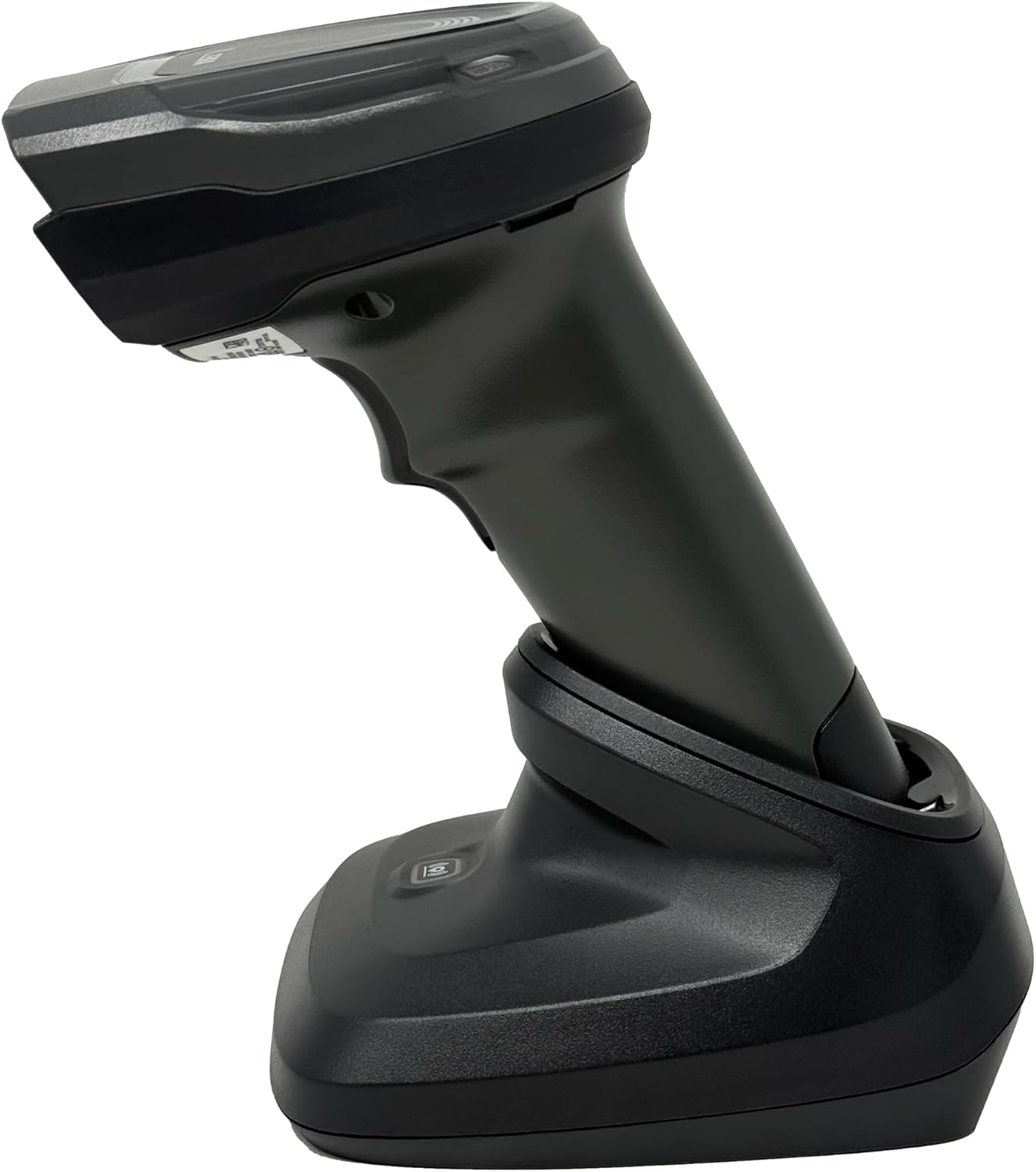
Kuva 4.4: The Zebra DS8178 scanner securely docked in its USB cradle, ready for charging or communication.
4.1 Skannerin osat
- Skannausikkuna: Area through which barcodes are read.
- Laukaista: Aktivoi skannaussäteen.
- LED-ilmaisimet: Provide status feedback (e.g., battery, scan success).
- Akkulokero: Houses the removable/rechargeable battery.
4.2 Cradle Components
- Scanner Slot: Where the scanner docks for charging and communication.
- USB-portti: Connects the cradle to a host device (PC, laptop).
- Pariliitospainike: Initiates Bluetooth pairing with the scanner.
- LED-ilmaisimet: Show cradle status (e.g., power, connection).
5. Asennus
5.1 Skannerin lataaminen
- Connect the USB cable to the cradle's USB port.
- Liitä USB-kaapelin toinen pää tietokoneen virtalähteeseen perustuvaan USB-porttiin tai USB-seinäpistokesovittimeen.
- Place the DS8178 scanner into the cradle. Ensure it is seated correctly.
- The scanner's LED indicator will show charging status. A full charge typically takes approximately 3-4 hours.
5.2 Connecting the Cradle to a Host Device
The cradle connects to your computer via a standard USB cable.
- Plug the USB cable into the USB port on the back of the cradle.
- Liitä USB-kaapelin toinen pää pöytätietokoneen tai kannettavan tietokoneen vapaaseen USB-porttiin.
- Käyttöjärjestelmän pitäisi automaattisesti tunnistaa ja asentaa tarvittavat ajurit.
5.3 Bluetooth -pariliitos
The DS8178 offers two primary Bluetooth pairing methods: via the cradle or direct to a host device.
5.3.1 Pairing via Cradle (Recommended for PC/Laptop)
- Ensure the cradle is connected to your host device (PC/Laptop) via USB.
- Place the DS8178 scanner into the cradle.
- The scanner will automatically pair with the cradle. Once paired, the scanner can be removed from the cradle and will communicate wirelessly with the host device through the cradle.
- A successful connection is indicated by a specific LED pattern on both the scanner and cradle (refer to the scanner's LED guide for details).
5.3.2 Direct Bluetooth Pairing (for Phones/Tablets or PC/Laptop without cradle)
- Power on the DS8178 scanner.
- Scan the "Pairing Barcode" (usually found in a quick start guide or on the scanner itself) to put the scanner into discoverable mode. Alternatively, press and hold the Bluetooth pairing button on the scanner (if available) or scan a specific Bluetooth pairing configuration barcode.
- On your phone, tablet, or computer, navigate to the Bluetooth settings.
- Etsi available devices. The DS8178 should appear in the list (e.g., "Zebra DS8178").
- Select the scanner to initiate pairing. You may be prompted to confirm a passkey or scan a pairing barcode displayed on your screen.
- Once paired, the scanner's LED will indicate a successful connection.
6. Käyttö
6.1 Viivakoodien skannaus
- Point the scan window of the DS8178 scanner at the barcode you wish to read.
- Press and hold the trigger button. A red aiming pattern will appear.
- Center the aiming pattern over the barcode. For 1D barcodes, the aiming line should cross the entire barcode. For 2D barcodes, the aiming pattern should encompass the entire code.
- Once the barcode is successfully read, the scanner will emit an audible beep and/or the LED indicator will flash green.
- Vapauta liipaisin.
6.2 Cordless Range
The Zebra DS8178 offers a cordless range of up to 330 feet (100 meters) from its cradle or directly paired host device, depending on environmental conditions and line of sight. Obstructions such as walls or other electronic devices may reduce the effective range.
6.3 Skannaustilat
- Laukaisutila: The scanner reads a barcode only when the trigger is pressed.
- Presentation Mode (Hands-Free): When placed in the presentation cradle, the scanner can be configured to automatically detect and read barcodes placed within its field of view without requiring a trigger press. This mode is ideal for high-volume scanning applications.
7. Huolto
7.1 Skannerin puhdistaminen
To maintain optimal scanning performance, keep the scan window clean.
- Käytä pehmeää, puhdasta ja nukkaamatonta liinaa dampened with water or a mild cleaning solution (e.g., isopropyl alcohol).
- Gently wipe the scan window and the exterior of the scanner.
- Älä käytä hankaavia puhdistusaineita, liuottimia tai voimakkaita kemikaaleja.
- Ensure the scanner is powered off before cleaning.
7.2 Akun hoito
The DS8178 features a 2500mAh removable and rechargeable battery. Proper battery care extends its lifespan.
- Lataa akku täyteen ennen ensimmäistä käyttöä.
- Avoid completely discharging the battery regularly.
- Säilytä skanneria viileässä ja kuivassa paikassa, kun sitä ei käytetä pitkään aikaan.
- If the battery performance significantly degrades, it may need replacement. Contact support for genuine replacement batteries.
8. Vianmääritys
| Ongelma | Mahdollinen syy | Ratkaisu |
|---|---|---|
| Skanneri ei käynnisty. | Akku on vähissä tai tyhjä. | Charge the scanner using the USB cradle and cable. |
| Skanneri ei muodosta yhteyttä Bluetoothin kautta. | Not in pairing mode; out of range; interference; host device Bluetooth off. | Ensure scanner is in pairing mode. Check host device Bluetooth settings. Move closer to the host device. Reduce interference. |
| Skanneri ei lue viivakoodeja. | Barcode damaged/poor quality; scan window dirty; incorrect symbology enabled; scanner not aimed correctly. | Try scanning a different barcode. Clean the scan window. Ensure correct aiming. Check scanner configuration for enabled symbologies. |
| Isännälle ei lähetetty tietoja. | Not paired; application not in focus; incorrect interface settings. | Confirm successful Bluetooth pairing. Ensure the target application (e.g., text editor, POS software) is active and ready to receive input. |
9. Tekniset tiedot
| Ominaisuus | Yksityiskohta |
|---|---|
| Malli | DS8178 |
| Merkki | Zebra (formerly Symbol) |
| Yhteystekniikka | Bluetooth, USB-kaapeli, Langaton |
| Yhteensopivat laitteet | Desktop, Laptop, Phones, Tablets |
| Virtalähde | Battery Powered, Corded Electric, Rechargeable |
| Akun kapasiteetti | 2500mAh (Removable/Rechargeable) |
| Johdoton valikoima | Jopa 330 jalkaa (100 metriä) |
| Skannausominaisuus | 1D- ja 2D-viivakoodit |
| Todellinen kulma View | 17 astetta |
| UPC-/GTIN-koodi | 649661651499 |
10. Takuu ja tuki
This Zebra DS8178 Barcode Scanner comes with a 90 päivän rajoitettu takuuTämä takuu kattaa materiaali- ja valmistusvirheet normaalissa käytössä. Se ei kata väärinkäytöstä, onnettomuuksista, luvattomista muutoksista tai ulkoisista tekijöistä aiheutuneita vahinkoja.
For technical support, warranty claims, or to purchase genuine replacement parts (such as batteries), please contact your reseller or visit the official Zebra support website. Please have your model number (DS8178) and any purchase information ready when contacting support.