
Microsoft L5V-00001
Microsoft Sculpt Ergonomic Wireless Desktop Keyboard and Wireless Mouse
Model: L5V-00001
1. Johdanto
This manual provides comprehensive instructions for the Microsoft Sculpt Ergonomic Wireless Desktop Keyboard and Wireless Mouse (Model L5V-00001). It covers setup, operation, maintenance, troubleshooting, and product specifications to ensure optimal use of your device.
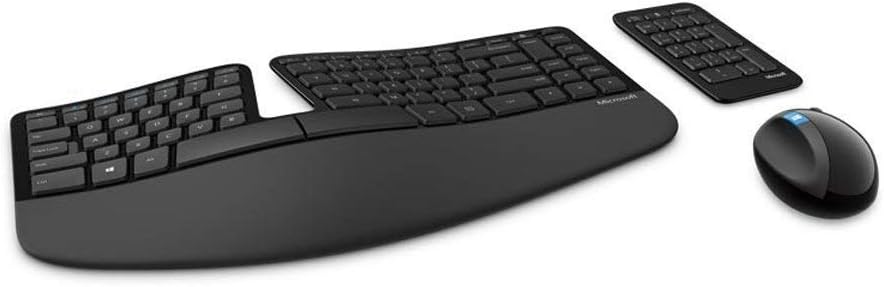
Kuva 1.1: Päättynytview of the Microsoft Sculpt Ergonomic Wireless Desktop Keyboard, Mouse, and separate Number Pad.
2. Tärkeimmät ominaisuudet
- Pehmustettu kämmentuki: Provides support and promotes a neutral wrist position, enhancing comfort during extended use.
- Split Keyset Design: Helps to position wrists and forearms in a natural, relaxed posture, reducing strain.
- Natural Arc Key Layout: Mimics the curved shape of the fingertips, allowing for more natural and comfortable typing.
- Domed Keyboard Design: Positions wrists at a natural, relaxed angle, contributing to ergonomic comfort.
- Erillinen numeronäppäimistö: Offers greater flexibility for workspace setup, allowing you to place the number pad independently.
- Advanced Encryption Standard (AES) Technology: Designed to help protect your information by encrypting your keystrokes.

Figure 2.1: Visual representation of the ergonomic features and key components of the Sculpt Ergonomic Desktop set.
3. Asennusopas
3.1 Pakkauksesta purkaminen ja alkutarkastus
Carefully remove all components from the packaging. Verify that all items are present: the ergonomic keyboard, wireless mouse, separate number pad, 2 AAA batteries, and the Bluetooth USB module.
3.2 Akun asennus
- Locate the battery compartments on the underside of the keyboard, mouse, and number pad.
- Avaa akkukoteloiden kannet.
- Aseta mukana toimitetut AAA-paristot paikoilleen varmistaen oikea napaisuus (+/-).
- Sulje akkukoteloiden kannet tiiviisti.
3.3 Tietokoneeseen liittäminen
- Plug the Bluetooth USB module into an available USB port on your computer.
- The devices should automatically connect. If not, press the connect button on the underside of each device (keyboard, mouse, number pad) and follow any on-screen prompts.
- Allow your operating system to install any necessary drivers. This process is usually automatic.

Kuva 3.1: Yläosa view of the Sculpt Ergonomic Keyboard, showing the split keyset and natural arc design.
4. Käyttöohjeet
4.1 Näppäimistön käyttö
The Sculpt Ergonomic Keyboard is designed for comfort. Position your hands naturally on the split keyset, allowing your wrists to rest on the cushioned palm rest. The natural arc and domed design promote a relaxed typing posture. Utilize the dedicated function keys for quick access to common commands such as Calculator, Mute, Play/Pause, Volume Up, and Volume Down.
4.2 Hiiren käyttö
The wireless mouse is shaped to fit comfortably in your hand, promoting a natural wrist position. It features standard left and right click buttons, a scroll wheel, and a Windows button for quick access to the Start menu or other Windows functions.
4.3 Number Pad Usage
The separate number pad can be placed anywhere on your desk for optimal flexibility. It functions as a standard numeric keypad, useful for data entry and calculations. Its independent nature allows for a more customized and comfortable workspace arrangement.
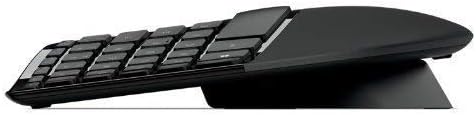
Kuva 4.1: Sivuprofiilifile of the separate number pad, illustrating its compact design.
5. Huolto ja hoito
5.1 Puhdistus
To maintain optimal performance and hygiene, regularly clean your keyboard, mouse, and number pad. Use a soft, lint-free cloth slightly dampened with water or a mild, non-abrasive cleaner. Avoid spraying liquids directly onto the devices. For sticky keys, a specialized electronics cleaner (e.g., WD-40 electronics cleaner) can be used as per the product's instructions, applied to a cloth, not directly to the keyboard.
5.2 Pariston vaihto
When the devices show signs of low power (e.g., reduced responsiveness, indicator light), replace the AAA batteries. Refer to Section 3.2 for battery installation instructions. Dispose of used batteries according to local regulations.
5.3 Varastointi
When not in use for extended periods, store the devices in a cool, dry place away from direct sunlight and extreme temperatures. If storing for a very long time, consider removing the batteries to prevent leakage.
6. Vianmääritys
| Ongelma | Mahdollinen syy | Ratkaisu |
|---|---|---|
| Keyboard/Mouse/Number Pad not responding | Low or dead batteries; USB receiver not properly connected; Interference. | Vaihda paristot. Varmista, että USB-vastaanotin on kytketty kunnolla toimivaan USB-porttiin. Kokeile toista USB-porttia. Siirrä laitteet lähemmäs vastaanotinta. |
| Näppäimet jumittuvat tai eivät reagoi | Debris under keys; Accumulation of dirt/grime. | Clean the keyboard thoroughly using compressed air or a soft brush. For persistent stickiness, use an electronics-safe cleaner applied to a cloth. |
| Hiiren kursori on epätasainen tai ei liiku | Dirty sensor; Unsuitable surface; Low battery. | Puhdista hiiren alapuolella oleva optinen anturi. Käytä hiirimattoa tai sileää, heijastamatonta pintaa. Vaihda paristot. |
| Connection issues after moving computer | Loss of pairing. | Re-pair the devices by pressing the connect button on each component and the USB receiver if applicable. Refer to your computer's Bluetooth settings for pairing options. |
7. Tekniset tiedot
| Ominaisuus | Yksityiskohta |
|---|---|
| Tuotteen mitat (näppäimistö) | 21.9 x 10.9 x 2.9 tuumaa (556.3 x 276.9 x 73.7 mm) |
| Tuotteen paino | 2.9 puntaa (1.32 kg) |
| Yhteystekniikka | Bluetooth, Radio Frequency (RF), USB |
| Erikoisominaisuus | Split Keyset Design, Cushioned Palm Rest, Natural Arc, Domed Keyboard |
| Yhteensopivat laitteet | Henkilökohtainen tietokone |
| Väri | Musta |
| Paristot vaaditaan | 2 AAA-paristoa (mukana) |
| Salaus | Advanced Encryption Standard (AES) 128-Bit Encryption |
Figure 7.1: Detailed dimensions for the keyboard, mouse, and number pad, along with key features.
8. Takuu ja tuki
8.1 Tuotetakuu
This Microsoft product comes with a limited warranty. Please refer to the warranty card included in your product packaging or visit the official Microsoft support websivustolta tarkemmat takuuehdot. Takuu kattaa tyypillisesti materiaali- ja valmistusvirheet normaalissa käytössä.
8.2 Tekninen tuki
For technical assistance, driver downloads, or further information, please visit the official Microsoft Support website. You can find support resources, FAQs, and contact options at support.microsoft.com. Ensure you have your product model number (L5V-00001) ready when contacting support.
Ask a question about this manual
Ask about setup, troubleshooting, compatibility, parts, safety, or missing instructions. Manuals+ will review the question and use this page’s manual context to help answer it.