
Tärkeitä turvallisuusohjeita
To ensure safe operation and prolong the life of your monitor, please read and follow these instructions carefully:
- Irrota aina virtajohto pistorasiasta ennen näytön puhdistamista.
- Älä altista näyttöä sateelle tai kosteudelle sähköiskun välttämiseksi.
- Varmista näytön ympärillä oleva asianmukainen ilmanvaihto ylikuumenemisen estämiseksi. Älä tuki tuuletusaukkoja.
- Käytä ainoastaan valmistajan toimittamaa virtalähdettä ja kaapeleita.
- Vältä painavien esineiden asettamista virtajohdon tai näytön päälle.
- If the monitor is damaged or malfunctions, do not attempt to repair it yourself. Contact qualified service personnel.
Pakkauksen sisältö
Before proceeding with the setup, please check the contents of your package to ensure all items are present:
- Acer CB272U smiiprx LED Monitor
- Näytön jalusta (jalusta ja varsi)
- Virtajohto
- HDMI kaapeli
- Pika-aloitusopas/takuukortti
Asennus
1. Näytön jalustan kokoaminen
- Carefully remove the monitor from its packaging. Place the monitor face down on a soft, clean cloth or surface to prevent scratches to the screen.
- Attach the stand arm to the back of the monitor panel. Ensure it is securely fastened, typically by sliding it into place until it clicks or by tightening screws.
- Connect the stand base to the bottom of the stand arm. Secure the base by tightening the captive screw located underneath the base.

Kuva 1: Takaosa view of the Acer CB272U smiiprx monitor with the stand attached, illustrating the assembly points.
2. Connecting the Monitor to Your Computer
- Connect one end of the provided HDMI cable to the HDMI port on the monitor.
- Connect the other end of the HDMI cable to the HDMI output port on your computer or graphics card.
- Kytke virtajohto näytön virransyöttöön ja kytke sitten toinen pää maadoitettuun pistorasiaan.

Kuva 2: Kulmassa oleva takaosa view showing the input ports of the monitor, including HDMI and power connections.
Näytön käyttö
Virran kytkeminen päälle ja pois päältä
Locate the power button on the monitor's bezel. Press it once to turn the monitor on. The power indicator light will illuminate. Press it again to turn the monitor off.
Adjusting Display Settings (OSD Menu)
The On-Screen Display (OSD) menu allows you to customize various monitor settings. Use the control buttons (usually located on the back or bottom right of the monitor) to navigate the OSD menu. Common adjustments include:
- Kirkkaus/kontrasti: Säädä kokonaisluminanssia ja eroa vaaleiden ja tummien alueiden välillä.
- Väriasetukset: Muokkaa värilämpötilaa, gammaa ja yksittäisiä RGB-tasoja.
- Syöttölähde: Manually select the video input (e.g., HDMI).
- Audio: Säädä sisäänrakennettujen kaiuttimien äänenvoimakkuutta.
Ergonomiset säädöt
The Acer CB272U smiiprx monitor stand offers multiple ergonomic adjustments to optimize your viewmukavuutta:
- Korkeuden säätö: Nosta tai laske näyttö silmien tasolle.
- Kallistaa: Adjust the screen angle forward or backward to reduce glare.
- Kääntyvä: Rotate the monitor horizontally to share your screen or adjust viewkulma.
- Pivot: Rotate the screen to a portrait orientation for document viewing tai koodaus.
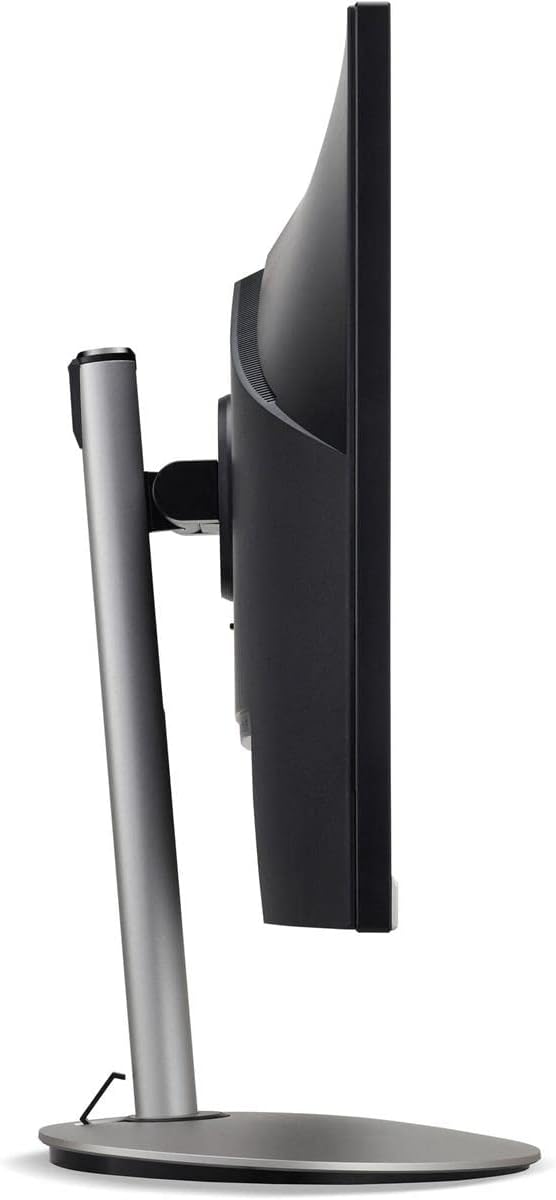
Kuva 3: Sivuprofiilifile of the monitor, illustrating its adjustable stand for ergonomic positioning.
Huolto
Cleaning the Monitor Screen and Casing
To clean your monitor, first ensure it is turned off and unplugged from the power outlet. Use a soft, lint-free cloth. For stubborn marks, lightly dampen the cloth with water or a specialized non-abrasive screen cleaner. Älä suihkuta nestettä suoraan näytölle taiasing. Vältä voimakkaiden kemikaalien, hankaavien puhdistusaineiden tai liuottimien käyttöä.
Säilytysohjeet
If you need to store the monitor for an extended period, it is recommended to use its original packaging to protect it from dust, moisture, and physical damage. Store in a cool, dry environment away from direct sunlight and extreme temperatures.
Vianetsintä
Yleisimmät ongelmat ja niiden ratkaisut löytyvät alla olevasta taulukosta:
| Ongelma | Mahdollinen syy | Ratkaisu |
|---|---|---|
| Ei kuvaa näytöllä | Virtajohto irti; Videokaapeli irti; Väärä tulolähde valittu. | Check power and video cable connections; Ensure the monitor is powered on; Select the correct input source via the OSD menu. |
| Kuva on epäselvä tai vääristynyt | Incorrect resolution setting; Faulty video cable. | Set the display resolution to 2560 x 1440 at 75 Hz; Try a different HDMI cable. |
| Kaiuttimista ei kuulu ääntä | Monitor volume too low or muted; Incorrect audio output selected on computer. | Adjust monitor volume via OSD; Unmute audio; Select the monitor as the audio output device in your computer's sound settings. |
| Näytön välkkyminen | Refresh rate mismatch; Interference; Faulty cable. | Ensure refresh rate is set to 75 Hz; Check for nearby electronic devices causing interference; Replace video cable. |
Tekniset tiedot
Key technical specifications for the Acer CB272U smiiprx LED Monitor:
| Ominaisuus | Yksityiskohta |
|---|---|
| Mallin nimi | CB272U smiiprx |
| Näytön koko | 24.1 tuumaa |
| Alkuperäinen resoluutio | 2560 1440 x XNUMX XNUMX (WQHD) |
| Päivitystaajuus | 75 Hz |
| Vastausaika | 1 Millisecond (VRB) |
| Kuvasuhde | 16:9 |
| Näytön tyyppi | LED-backlit LCD / TFT active matrix (IPS) |
| Kirkkaus | 350 cd/m² |
| Kontrastisuhde | 1000:1 (staattinen) |
| Yhteydet | HDMI |
| Mukautuva synkronointi | FreeSync |
| Sisäänrakennetut kaiuttimet | Kyllä |
| Dimensions (WxDxH with stand) | 24.1 x 9.2 x 20.5 tuumaa |
| Paino (jalustalla) | 18.1 puntaa |

Figure 4: Monitor dimensions with stand, indicating width, depth, and height.
Takuutiedot
The Acer CB272U smiiprx LED Monitor comes with a 3 vuoden valmistajan rajoitettu takuu. This warranty covers defects in materials and workmanship under normal use. For complete details regarding warranty coverage, limitations, and how to make a claim, please refer to the warranty documentation included with your product or visit the official Acer support websivusto.
Please retain your proof of purchase (receipt or invoice) as it will be required for any warranty service.
Asiakastuki
Should you require further assistance, technical support, or wish to download the latest drivers and firmware updates for your monitor, please visit the official Acer support websivusto:
You can also find contact information for Acer customer service in your region on the support websivusto henkilökohtaista apua varten.