
BenQ EX3501R
BenQ EX3501R Ultrawide Curved Gaming Monitor User Manual
Model: EX3501R
1. Asennus
1.1 Näytön purkaminen pakkauksesta
Poista kaikki osat varovasti pakkauksesta. Varmista, että kaikki alla luetellut osat ovat mukana:
- BenQ EX3501R Monitor
- Näytön jalusta (jalusta ja kaula)
- Virtalähde
- Virtajohto
- HDMI kaapeli
- DisplayPort-kaapeli
- USB-kaapeli
- Käyttöopas (tämä asiakirja)
1.2 Jalustan kokoaminen
Kiinnitä jalusta näyttöön seuraavasti:
- Aseta näyttö kuvaruutu alaspäin pehmeälle, puhtaalle liinalle naarmujen välttämiseksi.
- Attach the stand neck to the back of the monitor. Ensure it clicks securely into place.
- Connect the stand base to the neck, tightening any screws as indicated in the quick start guide.

Kuva 1: Etuosa view of the BenQ EX3501R monitor with its stand.
1.3 Liitäntäkaapelit
Connect the necessary cables to the monitor and your computer. The monitor supports various input options:
- Teho: Kytke virtalähde näyttöön ja sitten pistorasiaan.
- Video Input: Use either the HDMI, DisplayPort, or USB-C cable to connect your computer to the monitor.
- USB-C: The USB-C port supports video, data transfer, and power delivery, allowing for a single-cable connection with compatible devices.
- USB 3.0 Portit: Utilize the integrated USB 3.0 ports for connecting peripherals.
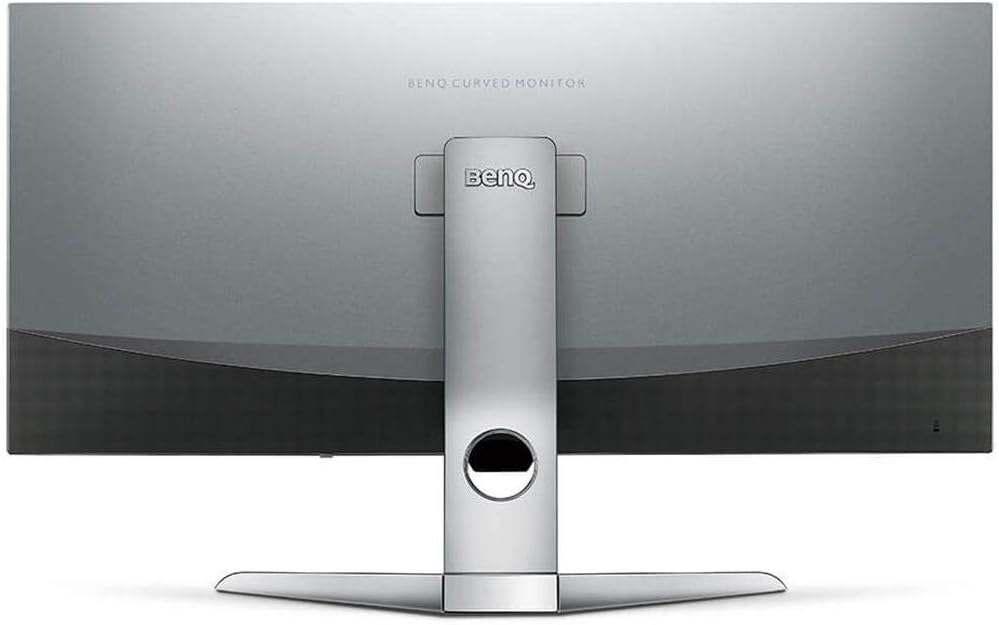
Kuva 2: Takaosa view of the monitor displaying the connectivity ports.
2. Näytön käyttö
2.1 Virta päälle/pois
Press the power button, usually located on the bottom right side of the monitor, to turn it on or off. The power indicator light will illuminate when the monitor is active.
2.2 Näyttövalikon (OSD) navigointi
Use the joystick or buttons located on the monitor's underside to navigate the On-Screen Display (OSD) menu. This menu allows you to adjust various settings such as brightness, contrast, color modes, and input sources.
2.3 Display Features and Eye-Care Technology
The BenQ EX3501R incorporates several technologies designed to enhance viewing experience and reduce eye strain:
- Brightness Intelligence Plus (B.I.+): This patented technology automatically senses ambient lighting conditions and adjusts the screen's brightness and color temperature to provide optimal viewing comfort and protect your eyes during extended use.
- Matala sininen valo: Filters out harmful blue light emissions to reduce eye fatigue. Multiple levels of blue light reduction are available.
- ZeroFlicker™: Eliminates screen flickering at all brightness levels, further reducing eye strain and discomfort.
- HDR (High Dynamic Range): Offers enhanced brightness and contrast, bringing greater detail and vibrancy to HDR video content.
Video 1: Ylilyöntiview of BenQ's Eye-Care technology, including Low Blue Light, ZeroFlicker, and Brightness Intelligence Plus, demonstrating how these features work to reduce eye strain and adjust screen settings automatically based on ambient light.
2.4 Resoluutio ja virkistystaajuus
The monitor features a QHD (3440x1440) resolution and a 100Hz refresh rate, providing a smooth and detailed visual experience. The 21:9 ultrawide aspect ratio offers ample screen space for multitasking, such as viewing multiple documents side-by-side without needing a second monitor.
2.5 AMD FreeSync
For a fluid gaming experience, the monitor supports AMD FreeSync technology, which synchronizes the monitor's refresh rate with your graphics card's frame rate to eliminate screen tearing and stuttering.
3. Huolto
3.1 Näytön puhdistaminen
To maintain optimal performance and appearance, regularly clean your monitor:
- Näyttö: Pyyhi näyttö varovasti pehmeällä, nukkaamattomalla liinalla. Pinttyneisiin tahroihin käytä näyttökohtaista puhdistusliuosta, jota levität liinaan, älä suoraan näyttöön.
- Ulkopuoli: Use a soft, dry cloth to wipe dust and debris from the monitor casing and stand.
Avoid using abrasive cleaners, waxes, or solvents as they can damage the monitor's surface.
3.2 Yleisiä hoitovinkkejä
- Älä tuki näytön tuuletusaukkoja.
- Vältä sijoittamasta näyttöä suoraan auringonpaisteeseen tai lämmönlähteiden lähelle.
- Käsittele näyttöä varoen fyysisten vaurioiden välttämiseksi.
4. Vianmääritys
If you encounter issues with your BenQ EX3501R monitor, refer to the following common troubleshooting steps:
4.1 Ei näyttöä tai musta ruutu
- Varmista, että virtajohto on kytketty kunnolla sekä näyttöön että pistorasiaan.
- Varmista, että videokaapeli (HDMI, DisplayPort tai USB-C) on kytketty kunnolla sekä näyttöön että tietokoneeseen.
- Tarkista, onko näytön OSD-valikosta valittu oikea tulolähde.
- Käynnistä tietokone uudelleen.
4.2 Välkkyvä tai epävakaa kuva
- Ensure the ZeroFlicker™ feature is enabled in the OSD menu.
- Tarkista löysien videokaapelien liitännät.
- Päivitä näytönohjaimen ajurit uusimpaan versioon.
- If using AMD FreeSync, ensure it is properly configured in your graphics card settings.
4.3 Color or Brightness Issues
- Säädä kirkkautta, kontrastia ja väriasetuksia OSD-valikon kautta.
- Enable or disable Brightness Intelligence Plus (B.I.+) to see if it resolves the issue.
- Suorita tehdasasetusten palautus OSD-valikon kautta.
5. Tekniset tiedot
Key technical specifications for the BenQ EX3501R monitor:
| Ominaisuus | Erittely |
|---|---|
| Näytön koko | 35 tuumaa |
| Suurin näytön tarkkuus | 3440 x 1440 pikseliä (QHD Ultrawide) |
| Kuvasuhde | 21:9 |
| Päivitystaajuus | 100 Hz |
| Kaarevuus | 1800R |
| Paneelin tyyppi | VA (Vertical Alignment) |
| Yhteydet | USB-C, HDMI, DisplayPort |
| Erikoisominaisuudet | AMD FreeSync, Brightness Intelligence Plus, Low Blue Light, ZeroFlicker |
| Tuotteen paino | 21.3 kiloa |
| Tuotteen mitat | 6.88 x 3.47 x 12.93 tuumaa |
6. Takuu ja tuki
6.1 Tuotetakuu
The BenQ EX3501R monitor typically comes with a 3-year manufacturer's warranty. Please refer to the warranty card included in your product packaging for specific terms and conditions, or visit the official BenQ webtarkemmat takuutiedot.
6.2 Asiakastuki
For further assistance, technical support, or warranty claims, please contact BenQ customer service. You can find contact information and support resources on the official BenQ websivusto: www.benq.com/en-us/support.html
Ask a question about this manual
Ask about setup, troubleshooting, compatibility, parts, safety, or missing instructions. Manuals+ will review the question and use this page’s manual context to help answer it.