
1. Johdanto
This manual provides essential information for the safe and efficient use of your Alienware AW3418DW 34.1-inch Curved Gaming Monitor. This monitor features a WQHD (3440x1440) resolution, a 120Hz refresh rate (overclocked), and NVIDIA G-SYNC technology for an immersive gaming experience. Please read this manual thoroughly before operating the device.
2. Turvallisuustiedot
- Always disconnect the power cable from the wall outlet before cleaning the monitor.
- Älä altista näyttöä sateelle tai kosteudelle tulipalo- tai sähköiskuvaaran välttämiseksi.
- Älä avaa näyttöä casing. Laitteen sisällä ei ole käyttäjän huollettavia osia. Anna kaikki huoltotoimenpiteet pätevän huoltohenkilöstön tehtäväksi.
- Aseta näyttö vakaalle ja tasaiselle alustalle, jotta se ei putoa.
- Varmista näytön ympärillä oleva asianmukainen ilmanvaihto. Älä tuki tuuletusaukkoja.
- Käytä ainoastaan näytön mukana toimitettua virtalähdettä ja kaapeleita.
3. Pakkauksen sisältö
Varmista, että pakkauksessa on kaikki osat:
- Alienware AW3418DW Monitor
- Näytön jalusta (jalusta ja korotuslevy)
- Virtakaapeli
- DisplayPort-kaapeli
- HDMI kaapeli
- USB 3.0 Upstream -kaapeli
- Dokumentaatio (pika-asennusopas, turvallisuustiedot)
4. Asennus
4.1 Fyysinen kokoonpano
Carefully remove the monitor and its components from the packaging. Place the monitor face down on a soft cloth or cushion to prevent scratches.
Jalustan kiinnitys
- Attach the stand riser to the monitor panel until it clicks into place.
- Attach the stand base to the stand riser and tighten the captive screw.

Kuva 4.1: Etuosa view of the Alienware AW3418DW monitor with its stand attached.

Kuva 4.2: Sivu view of the Alienware AW3418DW monitor with its stand.
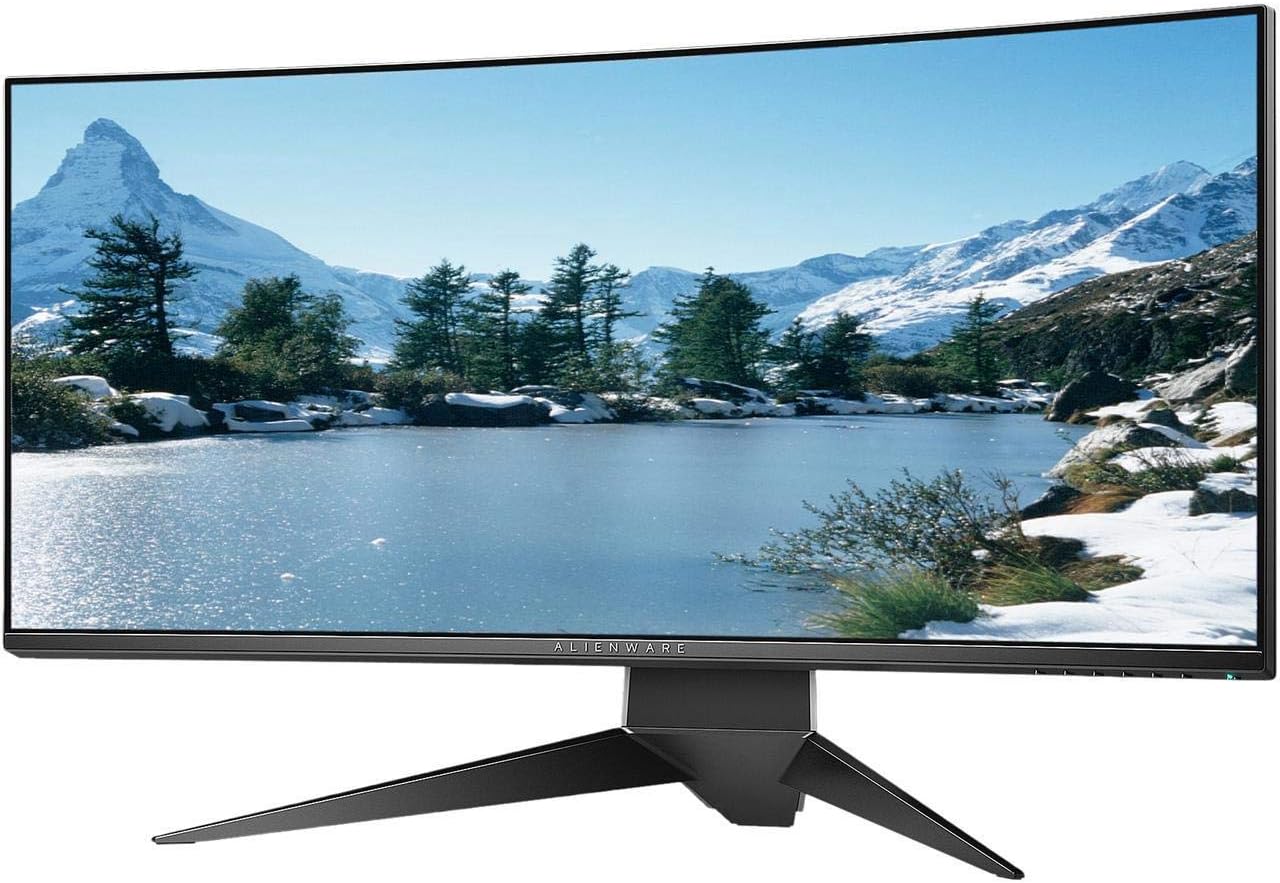
Kuva 4.3: Takaosa view of the Alienware AW3418DW monitor showing the stand and AlienFX lighting.
VESA-asennus
The monitor supports VESA mounting (100 x 100 mm). Remove the stand riser by pressing the release button and then attach the VESA-compatible mount to the monitor using appropriate screws. Ensure the mount can support the monitor's weight of 26.1 pounds (without stand).

Figure 4.4: Monitor dimensions for VESA mount compatibility.
4.2 Liitäntäkaapelit
Liitä tarvittavat kaapelit näyttöön ja tietokoneeseen.
- Sähköjohto: Connect the power cable to the monitor's power port and then to a wall outlet.
- Videokaapeli: Connect either the DisplayPort cable or the HDMI cable from your computer's graphics card to the corresponding port on the monitor. For optimal performance, especially for 120Hz refresh rate and G-SYNC, use the DisplayPort connection.
- USB Upstream -kaapeli: Connect the USB 3.0 upstream cable from your computer to the monitor's upstream USB port to enable the monitor's USB hub functionality.
- USB alavirran portit: Connect your USB devices (e.g., keyboard, mouse, webcam) to the four USB 3.0 downstream ports on the monitor.
5. Käyttöohjeet
5.1 Virta päälle/pois
Käynnistä tai sammuta näyttö painamalla siinä olevaa virtapainiketta. Virran merkkivalo osoittaa näytön tilan.
5.2 Näyttövalikon (OSD) navigointi
The On-Screen Display (OSD) menu allows you to adjust various monitor settings. Use the control buttons, typically located on the bottom right or rear of the monitor, to navigate the OSD.
- Press a control button to activate the OSD menu.
- Use the navigation buttons (up/down/left/right) to move through menu options.
- Vahvista valinta tai siirry alivalikkoon painamalla valintapainiketta.
- Palaa edelliseen valikkoon tai poistu OSD:stä painamalla takaisin/lopeta-painiketta.
5.3 Näyttöasetukset
Säädä näytön asetuksia optimaaliseksi viewing and gaming performance.
- Resoluutio: Set your computer's display resolution to 3440x1440 for the native WQHD experience.
- Päivitystaajuus: The monitor supports up to 120Hz refresh rate (overclocked). Ensure your graphics card drivers are updated and the refresh rate is set in your operating system's display settings or graphics control panel.
- NVIDIA G-SYNC: For tear-free and smooth gameplay, enable G-SYNC in your NVIDIA Control Panel. This feature synchronizes the monitor's refresh rate with your GPU's frame rate.
- Kirkkaus/kontrasti: Adjust these settings in the OSD menu to suit your environment and preference.
5.4 AlienFX Lighting
Customize the AlienFX lighting zones on your monitor through the OSD menu or Alienware Command Center software (if installed on your PC). You can select colors, effects, and synchronize lighting with other Alienware devices.
5.5 USB Hub Usage
The monitor acts as a USB 3.0 hub, providing convenient access to four downstream USB ports for connecting peripherals. Ensure the USB upstream cable is connected to your computer for this feature to function.
6. Huolto
6.1 Näytön puhdistaminen
- Always unplug the monitor from the electrical outlet before cleaning.
- Käytä pehmeää, nukkaamatonta liinaa kevyesti dampvedellä tai hankaamattomalla näytönpuhdistusaineella.
- Älä suihkuta puhdistusainetta suoraan näytölle.
- Pyyhi näyttö varovasti pölyn ja tahrojen poistamiseksi.
- Puhdista ulkopinta casing pehmeällä, kuivalla liinalla.
6.2 Varastointi
If storing the monitor for an extended period, disconnect all cables, carefully disassemble the stand (if applicable), and store it in its original packaging in a cool, dry place.
7. Vianmääritys
Jos kohtaat ongelmia näytön kanssa, noudata seuraavia yleisiä vianmääritysohjeita:
- Ei näyttöä: Ensure all power and video cables are securely connected. Check if the monitor is powered on and the correct input source is selected in the OSD.
- Välkkyminen/Tykkyminen: Verify that your graphics drivers are up to date. Ensure G-SYNC is properly configured in the NVIDIA Control Panel. Check for interference from other electronic devices.
- Väärä resoluutio/virkistystaajuus: Adjust the display settings in your operating system or graphics control panel to the native resolution (3440x1440) and desired refresh rate (up to 120Hz).
- Kuolleet pikselit: The Alienware AW3418DW comes with a Premium Panel Guarantee. Refer to the warranty information for details on pixel policy.
- USB-portit eivät toimi: Ensure the USB 3.0 upstream cable is connected from the monitor to your computer.
8. Tekniset tiedot
| Ominaisuus | Erittely |
|---|---|
| Merkki | Alienware |
| Mallinumero | AW3418DW |
| Näytön koko | 34.1 tuumaa |
| Resoluutio | WQHD (3440 x 1440 pikseliä) |
| Kuvasuhde | 21:9 |
| Päivitystaajuus | 120 Hz (Overclocked) |
| Vastausaika | 4 millisekuntia |
| Mukautuva synkronointitekniikka | NVIDIA G-SYNC |
| Näytön tyyppi | LED IPS |
| Kaarevuus | 1900R |
| Kirkkaus | 300 cd/m² |
| Kontrastisuhde | 1000:1 |
| Viewkulma | 178 astetta |
| Yhteydet | 1x DisplayPort (1.2), 1x HDMI (1.4), 4x USB 3.0 Downstream, 1x USB 3.0 Upstream |
| Tuotteen paino | 26.1 Pounds (without stand) |
| Asennustyyppi | VESA Compatible (100 x 100 mm) |
9. Takuu ja tuki
Your Alienware AW3418DW monitor is covered by a 3 Years Limited Hardware Warranty ja 3 Years Advance Exchange Service, mukaan lukien a Premium Panel Guarantee. The Premium Panel Guarantee ensures a free panel replacement during the limited hardware warranty period even if only one bright pixel is found.
For technical support, warranty claims, or additional information, please visit the official Alienware or Dell support website. You may also find updated drivers and firmware there.
Online-tuki: www.dell.com/support