
1. Johdanto
This manual provides detailed instructions for the setup, operation, and maintenance of your ELECROW 7 Inch 1024x600 IPS Capacitive Touchscreen Monitor. This display is designed for broad compatibility with devices such as Raspberry Pi (5/4/3B+/3B/2B+), BB Black, Banana Pi, Jetson Nano, and Windows 11/10/8/7 systems.
Tärkeimmät ominaisuudet:
- HD-visuaalit: 7-inch IPS screen with 1024x600 resolution and 170° wide viewing angle for consistent colors and clear viewing.
- Kapasitiivinen kosketus: Supports up to 5-point touch functionality without requiring driver installation for most compatible systems.
- Plug and Play: Simple connectivity via HD (HDMI) and Micro USB ports for immediate use.
- Monipuolinen sovellus: Suitable for use as a Raspberry Pi display, mini PC monitor, gaming console screen, or a computer temperature monitor.
2. Mitä laatikossa on
Varmista, että kaikki osat ovat mukana ennen asennuksen jatkamista.
- 7 Inch Capacitive Display x 1
- HD-kaapeli x 1
- USB-kaapeli x 1
- Micro HD Adapter x 1
- Copper Screws Pack (4pcs) x 1
- DVD x 1 (Contains drivers and documentation)
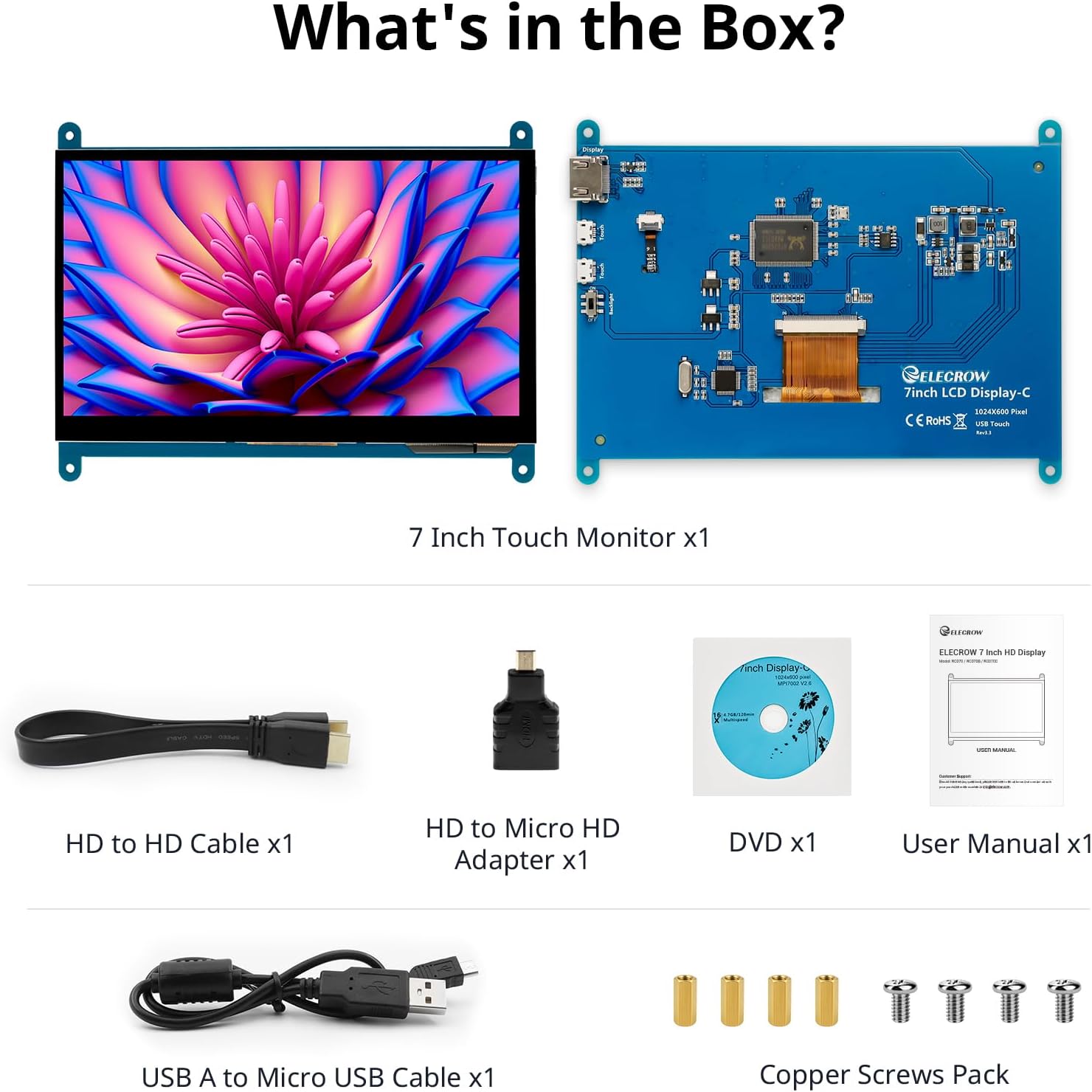
Kuva: Kaikki osat sisältyvät tuotepakkaukseen.
3. Asennus ja liitännät
Follow these steps to connect your ELECROW 7 Inch Touchscreen Monitor to your device.
3.1 Laitteisto ohiview

Kuva: Takaosa view of the monitor highlighting the Standard HD Port, Micro USB Port for touch and power, and Backlight switch.
- Standard HD Port: For video data transfer.
- Micro USB -portti: For touch functionality and power supply.
- Taustavalon kytkin: To turn the display backlight on or off.
3.2 Yhdistäminen Raspberry Pihin
To connect the monitor to a Raspberry Pi, you will need both the HD cable for video and the USB cable for touch and power.
- Connect one end of the HD cable to the Standard HD Port on the monitor and the other end to the HDMI port on your Raspberry Pi. Use the Micro HD adapter if necessary for your Raspberry Pi model.
- Connect the Micro USB cable to the Micro USB Port on the monitor. Connect the other end of the USB cable to a USB port on your Raspberry Pi for power and touch data.
- Ensure the backlight switch on the monitor is in the 'On' position.
- Power on your Raspberry Pi. The display should automatically detect and show the output.
For touch functionality with Raspberry Pi, power can be supplied via the Raspberry Pi's USB port. If using an external power source for the Raspberry Pi, ensure it is sufficient. For optimal performance, especially with older Raspberry Pi models, an external power supply for the monitor might be beneficial if the Pi cannot provide enough current.
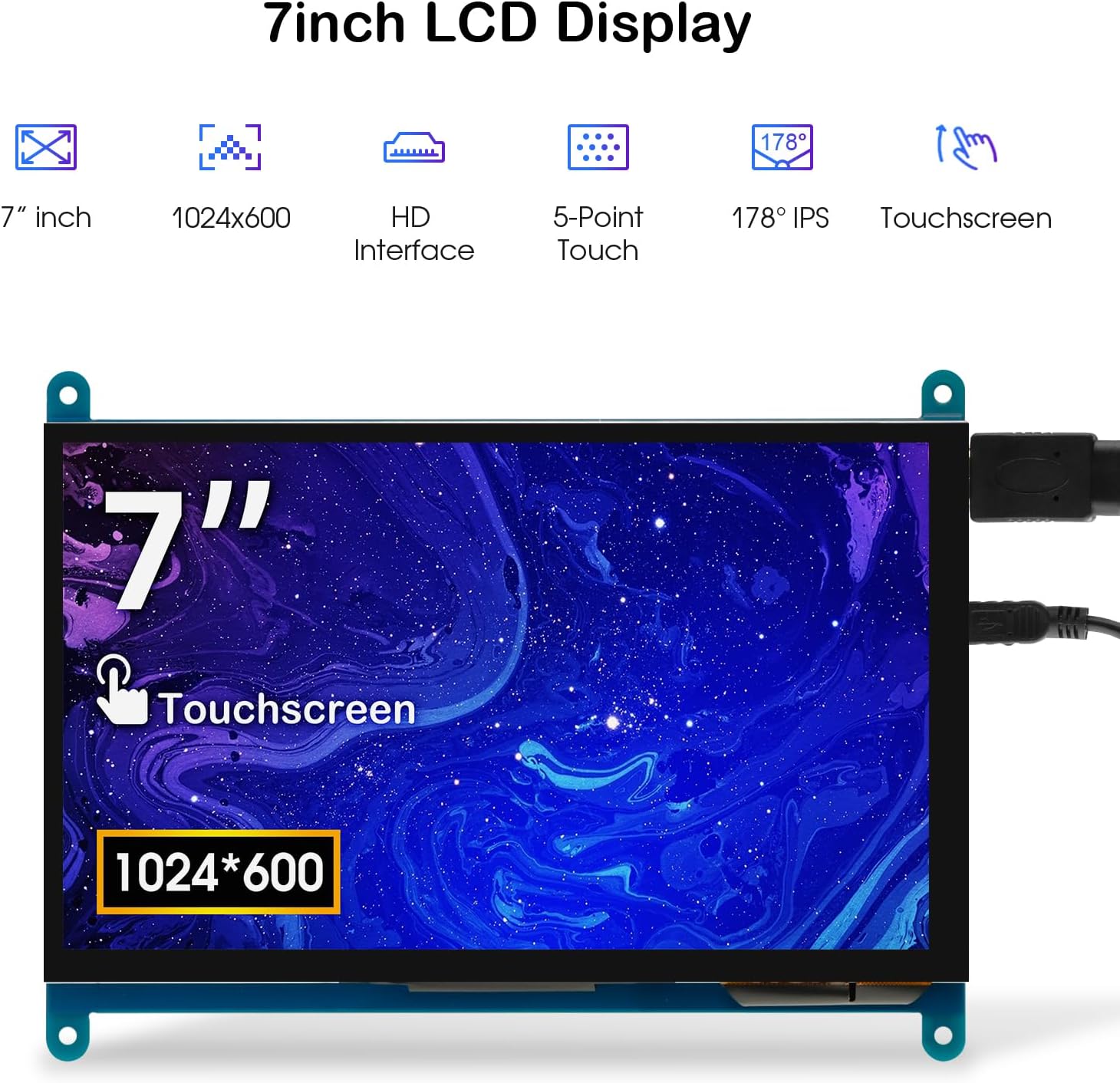
Image: The 7-inch touchscreen connected to a Raspberry Pi board, displaying a graphical user interface.
3.3 Connecting to Windows PC/Laptop
For Windows systems, the monitor functions as a plug-and-play display and touchscreen.
- Connect the HD cable from the monitor's Standard HD Port to an HDMI port on your PC or laptop.
- Connect the Micro USB cable from the monitor's Micro USB Port to a USB-A port on your PC or laptop. This provides power and enables touch functionality.
- Ensure the backlight switch is 'On'.
- Your Windows system should automatically detect the display and touchscreen. No additional drivers are typically required for Windows 7/8/10/11 for basic display and 5-point touch.

Image: The 7-inch touchscreen connected to a laptop, demonstrating seamless connectivity with various operating systems including Windows.
4. Käyttöohjeet
4.1 Kosketustoiminnot
The monitor supports 5-point capacitive touch, allowing for various gestures.
- Napauta: Single touch for selection or activation.
- Paina: Sustained touch for context menus or drag operations.
- Lähennä/Loitonna: Pinch gestures with two fingers.
- Mouse Click: A single tap typically registers as a left-click.
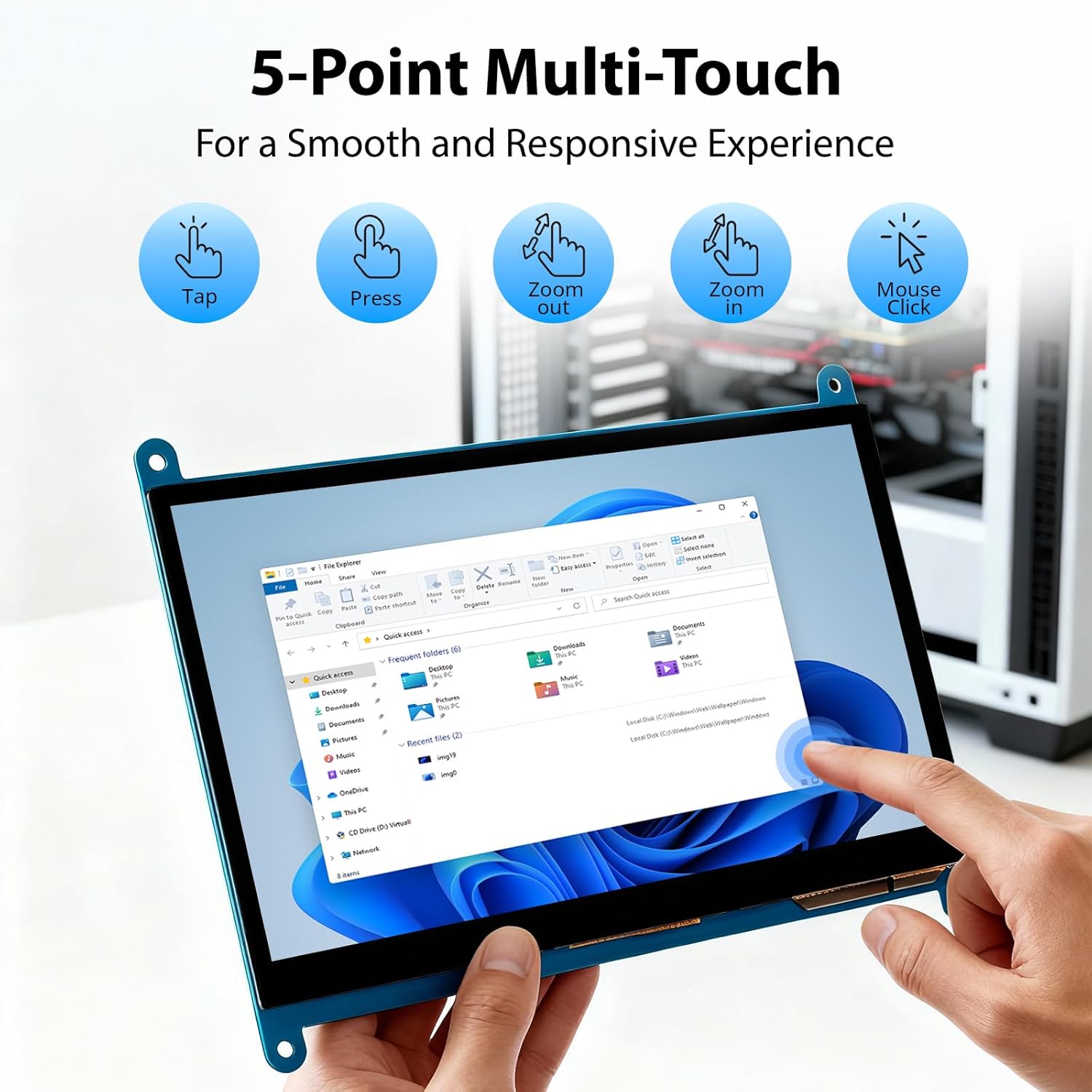
Image: Visual guide to the 5-point multi-touch capabilities of the screen, showing common gestures.
4.2 Näyttötilat
When connected to a computer, the monitor can operate in several display modes:
- Kopiointitila: Näyttö peilaa ensisijaisen näyttösi sisällön.
- Laajenna tila: The monitor acts as an extension of your primary display, providing additional screen space.
- Toisen näytön tila: Näyttö toimii ainoana näyttönä, ja ensisijainen näyttö on sammutettu.
These modes can typically be configured through your operating system's display settings.

Image: Illustrations demonstrating the three display modes: Duplicate, Extend, and Second Screen, showing how the monitor can be used with a laptop.
4.3 taustavalon ohjaus
The monitor features a physical switch to control the backlight. This allows you to turn the display illumination on or off without disconnecting power. Note that there is no granular brightness control; it is an on/off function only.
Video: This video demonstrates the backlight control switch on the ELECROW 7 Inch Touchscreen, showing how to turn the display illumination on and off.
5. Huolto
Asianmukainen huolto varmistaa näyttösi pitkän käyttöiän ja optimaalisen suorituskyvyn.
- Näytön puhdistaminen: Käytä pehmeää, nukkaamatonta liinaa hieman dampvedellä tai näytönpuhdistusliuoksella. Vältä voimakkaita kemikaaleja tai hankaavia materiaaleja, jotka voivat vahingoittaa näytön pintaa.
- Yleishoito: Keep the monitor in a clean, dry environment. Avoid exposing it to extreme temperatures, direct sunlight, or high humidity.
- Käsittely: Handle the monitor by its edges. Avoid applying excessive pressure to the screen.
6. Vianmääritys
Jos kohtaat ongelmia näytön kanssa, katso seuraavat yleiset ongelmat ja ratkaisut.
| Ongelma | Mahdollinen syy | Ratkaisu |
|---|---|---|
| Ei näyttöä/musta ruutu |
|
|
| Kosketusnäyttö ei vastaa |
|
|
| Display resolution incorrect |
|
|
| Ei kirkkauden säätöä | The monitor only has an on/off switch for the backlight, not adjustable brightness. | This is expected behavior. The monitor does not support adjustable brightness. |
7. Tekniset tiedot
Detailed technical specifications for the ELECROW 7 Inch Touchscreen Monitor.
| Ominaisuus | Yksityiskohta |
|---|---|
| Merkki | SÄHKÖ |
| Mallin nimi | RC070 |
| Näytön koko | 7 tuumaa |
| Näytön resoluutio maksimi | 1024 x 600 |
| Alkuperäinen resoluutio | 1024x600 |
| Näytön tyyppi | LCD |
| Näyttötekniikka | IPS |
| Kuvasuhde | 1.71:1 |
| Päivitystaajuus | 60 Hz |
| Vastausaika | 8 millisekuntia |
| Kontrastisuhde | 800:1 |
| Kirkkaus | 300 lm |
| Viewkulma | 170 astetta |
| Näytön pinnan kuvaus | Kiiltävä |
| Yhteystekniikka | HDMI |
| Laitteistoyhteydet | HDMI, USB |
| Total Number of HDMI Ports | 1 |
| USB-portteja yhteensä | 2 (Micro USB for power/touch, USB-A for power/touch) |
| Virrankulutus | 12.5 wattia |
| Voitage | 5 volttia |
| Tuotteen mitat (S x L x K) | 0.3" S x 6.1" L x 4.8" K |
| Tuotteen paino | 7.36 unssia |
| Yhteensopivat laitteet | Raspberry Pi, BB Black, Banana Pi, Jetson Nano, Computers, Laptops, Gaming Consoles |
8. Takuu ja tuki
Your ELECROW 7 Inch Touchscreen Monitor comes with a manufacturer's warranty.
- Takuutyyppi: 1 vuoden valmistajan takuu
- Takuukuvaus: 1 vuoden valmistaja
For technical support or warranty claims, please contact ELECROW customer service through their official websivusto tai alusta, jolta tuote on ostettu.