
1. Johdanto
The Brother DCP-J132W is a compact and versatile multifunction inkjet printer designed for home and small office use. It offers printing, scanning, and copying functionalities, along with wireless connectivity for convenient use from various devices. This manual provides essential information to help you get the most out of your printer.
2. Turvallisuustiedot
Please read these safety instructions carefully before using the printer to prevent injury and damage to the machine.
- Always place the printer on a flat, stable surface.
- Älä tuki tai peitä tuuletusaukkoja.
- Käytä ainoastaan tulostimen mukana toimitettua virtajohtoa.
- Älä altista tulostinta vedelle tai liialliselle kosteudelle.
- Pidä mustekasetit poissa lasten ulottuvilta.
- Irrota tulostin pistorasiasta ennen puhdistusta tai huoltoa.
3. Mitä laatikossa on
Varmista, että pakkauksessa on kaikki osat:
- Brother DCP-J132W Multifunction Printer
- Ink Cartridges (Starter Set)
- Virtajohto
- Asennus-CD-ROM
- Pika-asennusopas
Note: A USB cable is not typically included and may need to be purchased separately if you prefer a wired connection.
4. Asennus
4.1 Purkaminen pakkauksesta ja alkusijoitus
- Poista tulostin pakkauksestaan ja poista kaikki suojateipit ja pakkausmateriaalit.
- Place the printer on a stable, level surface near a power outlet.
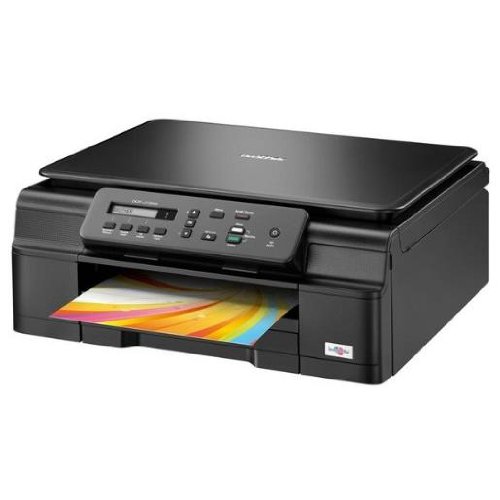
Kuva 4.1: Etuosa view of the Brother DCP-J132W printer, showing the paper output tray with a colorful document.
4.2 Mustekasettien asentaminen
- Avaa tulostimen etuosassa sijaitsevan mustekasetin kansi.
- Unpack each ink cartridge (Black, Cyan, Magenta, Yellow).
- Insert each cartridge into its corresponding slot, pressing down until it clicks into place.
- Sulje mustekasetin kansi. Tulostin aloittaa musteen latauksen.
4.3 Paperin lisääminen
- Vedä paperilokero kokonaan ulos tulostimesta.
- Adjust the paper guides to fit the paper size you are loading (e.g., A4).
- Load paper into the tray, print side down. Do not overfill.
- Työnnä paperilokeroa varovasti takaisin tulostimeen, kunnes se lukittuu.
4.4 Virran kytkeminen
- Liitä virtajohto tulostimen virtalähteeseen.
- Liitä virtajohdon toinen pää seinäpistorasiaan.
- Käynnistä tulostin painamalla virtapainiketta.
4.5 Ohjelmiston asennus ja verkkoyhteys
Install the printer drivers and software from the included CD-ROM or download the latest versions from the official Brother support websivusto. Noudata näytön ohjeita asennuksen suorittamiseksi.
- Langaton asennus: During software installation, select the wireless connection option and follow the prompts to connect your printer to your Wi-Fi network. You may need your network SSID and password.
- USB-liitäntä: If using a USB cable (not included), connect it to the printer and your computer when prompted by the installation software.

Kuva 4.2: Kulmassa view of the Brother DCP-J132W printer, highlighting its compact design and control panel.
5. Tulostimen käyttö
5.1 Asiakirjojen tulostaminen
- Avaa tulostettava asiakirja tai kuva tietokoneellasi tai mobiililaitteellasi.
- Valitse sovelluksen valikosta "Tulosta".
- Choose "Brother DCP-J132W" as your printer.
- Adjust print settings (e.g., paper size, color/grayscale, number of copies) as needed.
- Napsauta "Tulosta".
5.2 Asiakirjojen skannaaminen
- Place the document face down on the scanner glass, aligning it with the guide marks.
- Sulje skannerin kansi.
- On your computer, open the Brother ControlCenter software or a scanning application.
- Select "Scan" and choose your desired scan settings (e.g., resolution, color mode, destination).
- Aloita prosessi napsauttamalla "Skannaa".
5.3 Asiakirjojen kopioiminen
- Aseta asiakirja skannaustasolle kuvapuoli alaspäin.
- Paina tulostimen ohjauspaneelissa "Kopioi"-painiketta.
- Use the arrow keys to select the number of copies or other settings (e.g., quality).
- Press "Start" (Color or Black & White) to begin copying.
6. Huolto
6.1 Mustekasettien vaihtaminen
When an ink cartridge is low or empty, a message will appear on the printer's display or your computer. Use genuine Brother LC121 or LC123 series ink cartridges for optimal performance.
- Avaa mustekasetin kansi.
- Paina tyhjän patruunan vapautusvipua ja poista se.
- Unpack a new cartridge and insert it firmly into the correct slot until it clicks.
- Sulje mustekasetin kansi.
6.2 Tulostuspään puhdistaminen
If print quality declines (e.g., missing lines, streaking), perform a print head cleaning from the printer's control panel or through the printer driver software on your computer. Refer to the on-screen instructions for the cleaning procedure.
6.3 Skannerin lasin puhdistaminen
To ensure clear scans and copies, regularly clean the scanner glass with a soft, lint-free cloth moistened with a non-abrasive glass cleaner. Avoid spraying cleaner directly onto the glass.
7. Vianmääritys
This section addresses common issues you might encounter with your Brother DCP-J132W printer.
- Tulostin ei käynnisty:
- Varmista, että virtajohto on kytketty kunnolla sekä tulostimeen että toimivaan pistorasiaan.
- Kokeile kytkeä toinen laite pistorasiaan varmistaaksesi, että siinä on virtaa.
- Paperitukokset:
- Carefully open all covers and remove any jammed paper following the instructions on the printer's display or in the full user guide.
- Varmista, että paperi on ladattu oikein eikä paperilokerossa ole liikaa paperia.
- Huono tulostuslaatu:
- Tarkista mustetasot ja vaihda kaikki lähes tyhjät tai musteen loppuneet kasetit.
- Suorita tulostuspään puhdistus ja kohdistus tulostimen huoltovalikosta.
- Varmista, että käytät tulostusasetuksiin sopivaa paperia.
- Langattoman yhteyden ongelmat:
- Varmista, että tulostin on Wi-Fi-reitittimen kantaman sisällä.
- Käynnistä reititin, tietokone ja tulostin uudelleen.
- Re-run the wireless setup utility from the printer's control panel or the Brother software.
- Varmista, että Wi-Fi-salasanasi on syötetty oikein.
For more detailed troubleshooting, refer to the comprehensive user manual available on the Brother support websivusto.
8. Tekniset tiedot
| Ominaisuus | Yksityiskohta |
|---|---|
| Merkki | Veli |
| Mallin nimi | DCPJ132W |
| Yhteystekniikka | Wi-Fi, USB |
| Tulostimen lähtö | Väri |
| Suurin tulostusnopeus (väri) | 27 sivua minuutissa |
| Suurin tulostusnopeus (mustavalkoinen) | 27 sivua minuutissa |
| Tulostuksen maksimitarkkuus (väri) | 1200 x 1200 dpi |
| Suurin tulostustarkkuus (mustavalkoinen) | 1200 x 1200 dpi |
| Tuotteen mitat (SxLxK) | 16.1P x 41lx 16.1K cm |
| Max Supported Paper Size | A4 |
| Printing Media Support | Plain paper, Glossy photo paper, Transparencies |
| Skannerin tyyppi | Tasosänky |
| Skannerin resoluutio | 2400 dpi |
| Kaksipuolinen tulostus | Automaattinen |
| Yhteensopivat kasetit | LC121BK/C/M/Y & LC123BK/C/M/Y |
| Suurin syöttöarkin kapasiteetti | 250 |
9. Takuu ja tuki
9.1 Takuutiedot
The Brother DCP-J132W typically comes with a manufacturer's warranty. Please refer to the warranty card included with your product or visit the official Brother website for specific terms and conditions applicable in your region. The availability of spare parts in the EU is guaranteed for 1 year.
9.2 Asiakastuki
For technical assistance, driver downloads, or further information, please visit the official Brother support websivusto. Löydät usein kysyttyjä kysymyksiä, vianmääritysoppaita ja asiakaspalvelun yhteystietoja.
Veljen tuki Websivusto: www.brother.eu/support