
1. Johdanto
This manual provides instructions for the installation, operation, and maintenance of your DIGITUS DN-70542 Wireless LAN USB 2.0 Adapter. This device allows your computer to connect to a wireless network using the 802.11n standard, offering data transfer rates of up to 300 Mbps.
The adapter is backward compatible with IEEE 802.11g and 802.11b standards and operates within the 2.4-2.4835GHz frequency range. It also features a Wireless Protected Setup (WPS) function for easy and secure network connection.

Kuva 1.1: Yläosa view of the DIGITUS DN-70542 Wireless LAN USB 2.0 Adapter.

Kuva 1.2: Kulmassa view of the DIGITUS DN-70542 adapter, highlighting its compact design.

Kuva 1.3: Yksityiskohtainen view of the USB 2.0 connector of the DIGITUS DN-70542 adapter.
2. Pakkauksen sisältö
Varmista, että pakkauksessa on kaikki tarvittavat osat:
- 1 x DIGITUS DN-70542 Mini USB WiFi Adapter
- 1 x Product Support CD-ROM (containing drivers and utilities)
- 1 x Käyttöohje (tämä asiakirja)
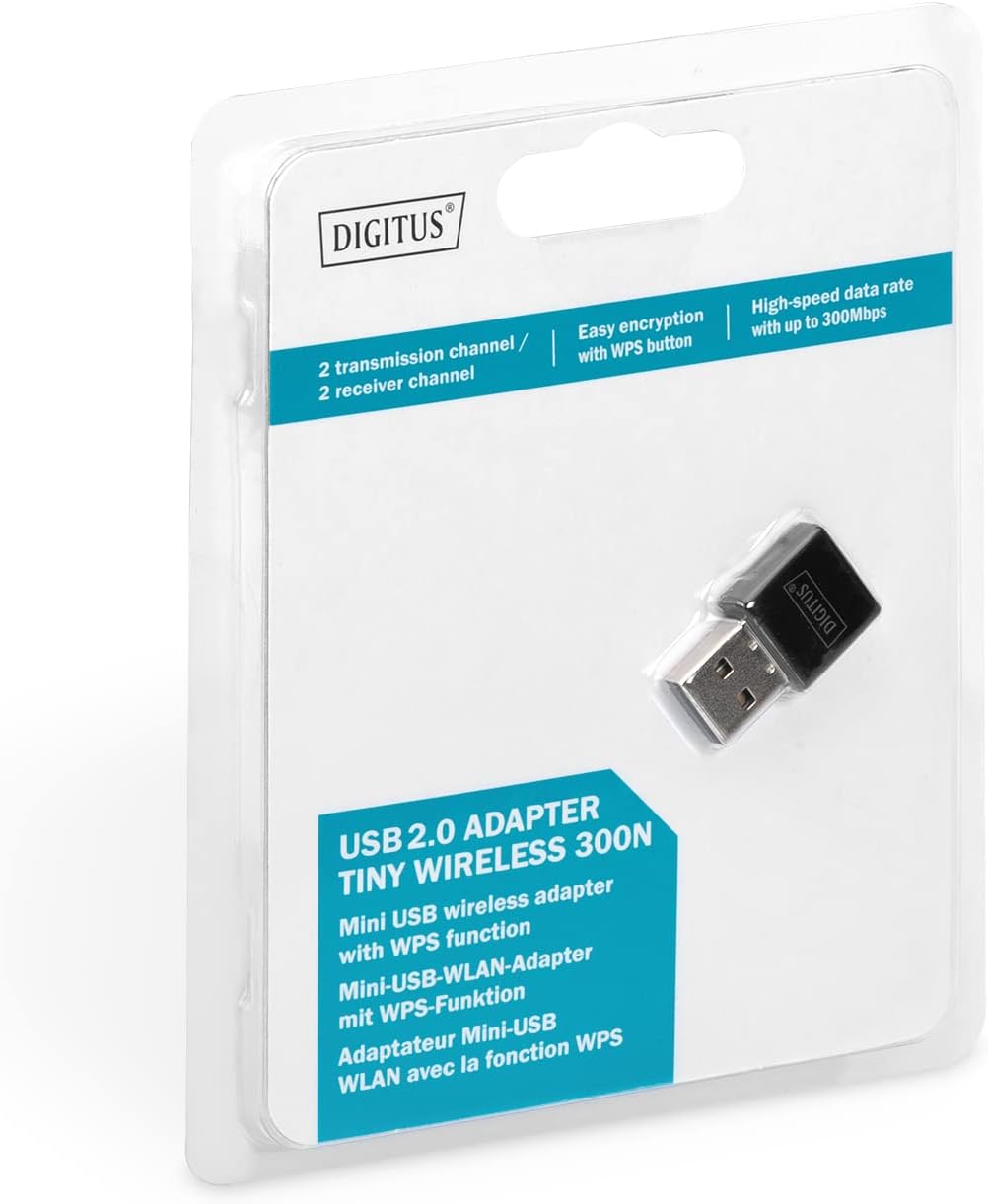
Figure 2.1: Retail packaging of the DIGITUS DN-70542 adapter, showing the adapter and its key features.
3. Asennusopas
Follow these steps to install your Wireless LAN USB Adapter:
- Asenna ajurit: Before connecting the adapter, insert the included Product Support CD-ROM into your computer's optical drive. Follow the on-screen instructions to install the necessary drivers. If your computer does not have an optical drive, or if you encounter issues, please visit the official DIGITUS website to download the latest drivers for your operating system (Windows).
Note: Some operating systems, particularly older versions of Windows, may require driver installation prior to connecting the device. Refer to the Troubleshooting section if you encounter issues during this step.
- Liitä sovitin: Locate an available USB 2.0 port on your computer. Carefully insert the DIGITUS DN-70542 Wireless LAN USB 2.0 Adapter into the USB port.
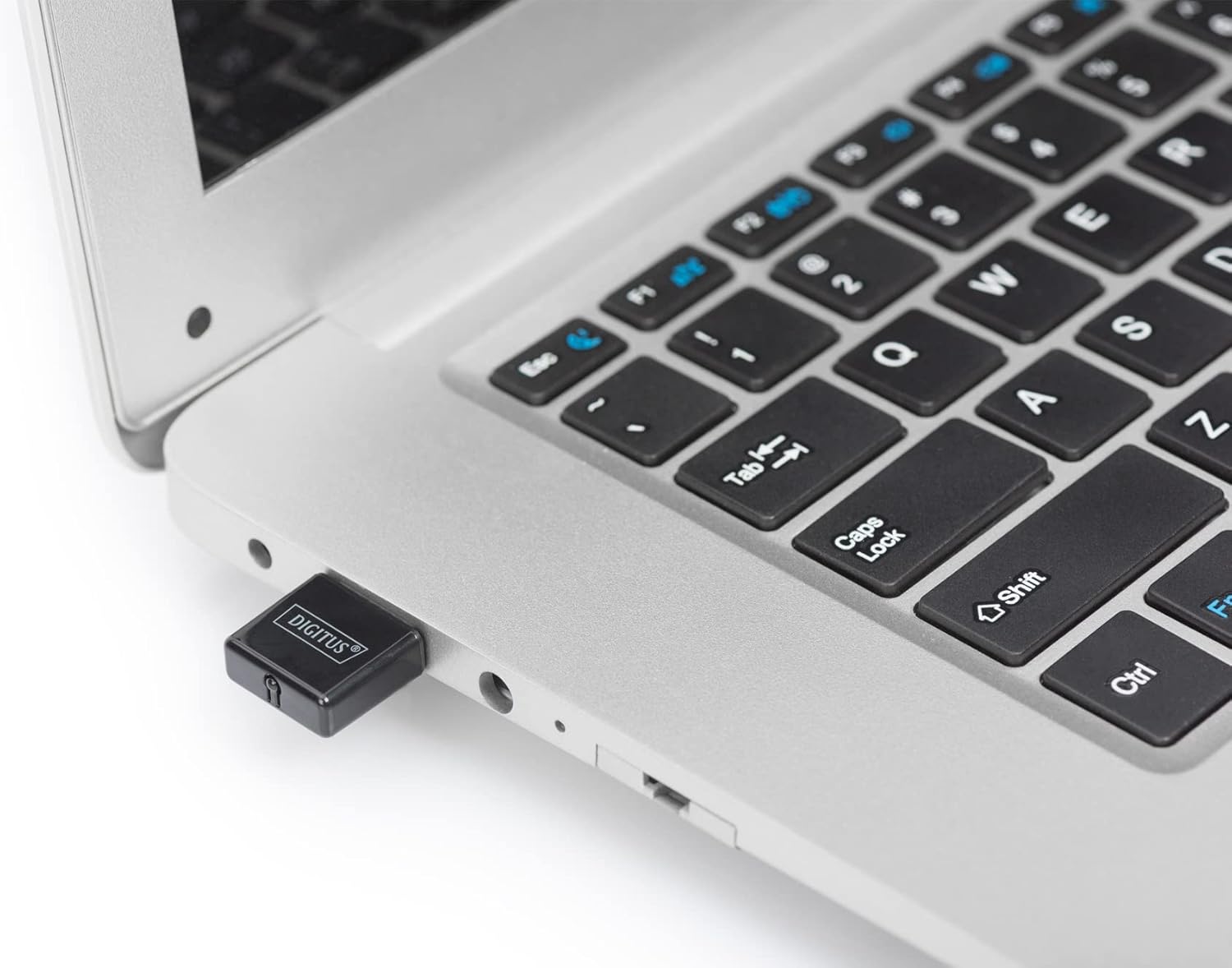
Figure 3.1: The DIGITUS DN-70542 adapter inserted into a laptop's USB port.

Kuva 3.2: Sulkija view of the adapter connected to a laptop, showing its compact size.
- Tarkista asennus: After connecting, your operating system should detect the new hardware and complete the installation. You can verify the installation by checking your computer's Device Manager (for Windows) to ensure the wireless adapter is listed and functioning correctly.
4. Käyttöohjeet
Once the adapter is successfully installed, you can connect to a wireless network.
- Yhdistäminen langattomaan verkkoon:
- Open your computer's wireless network settings.
- Etsi käytettävissä olevia langattomia verkkoja.
- Select your desired network (SSID) from the list.
- Anna verkon suojausavain (salasana), jos sitä pyydetään.
- Click "Connect" to establish the wireless connection.
- WPS:n (Wi-Fi Protected Setup) käyttö:
The adapter supports WPS for a simplified and secure connection to compatible routers.
- Paina langattoman reitittimen WPS-painiketta.
- Within two minutes, press the WPS button on the DIGITUS DN-70542 adapter. The WPS button is a small, recessed button on the side of the adapter.
- The adapter and router will automatically establish a secure connection.

Figure 4.1: The WPS button located on the side of the adapter.
5. Huolto
To ensure optimal performance and longevity of your DIGITUS DN-70542 adapter, follow these guidelines:
- Pidä sovitin puhtaana ja pölyttömänä. Käytä puhdistamiseen pehmeää, kuivaa liinaa.
- Vältä sovittimen altistamista äärimmäisille lämpötiloille, kosteudelle tai suoralle auringonvalolle.
- Älä yritä purkaa tai korjata sovitinta itse. Tämä mitätöi takuun.
- Säilytä sovitinta turvallisessa paikassa, kun sitä ei käytetä, jotta se ei vahingoitu.
6. Vianmääritys
If you encounter issues with your DIGITUS DN-70542 Wireless LAN USB 2.0 Adapter, refer to the following common problems and solutions:
- Adapter Not Detected / Driver Installation Issues:
- Varmista, että sovitin on työnnetty kokonaan toimivaan USB-porttiin.
- Kokeile toista USB-porttia.
- Reinstall the drivers from the provided CD-ROM.
- Download the latest drivers from the official DIGITUS websivusto.
- If using Windows 8.1 or newer and encountering issues like "Bluescreen" or "infected file" warnings during driver installation, temporarily disable antivirus software (like Windows Defender) during driver installation, then re-enable it immediately after. Ensure you are downloading drivers from a trusted source (DIGITUS official websivusto).
- Check Device Manager to see if the adapter is listed with any error symbols.
- Langattomaan verkkoon ei voi muodostaa yhteyttä:
- Verify that your wireless router is powered on and broadcasting a signal.
- Ensure you are entering the correct network security key (password).
- Move closer to the wireless router to improve signal strength.
- Restart your computer and the wireless router.
- Check if other devices can connect to the same wireless network.
- Hidas yhteysnopeus:
- Ensure your router supports 802.11n for optimal speeds.
- Minimoi muiden elektronisten laitteiden (esim. mikroaaltouunien, langattomien puhelimien) aiheuttamat häiriöt.
- Päivitä reitittimesi laiteohjelmisto.
- Check for other devices consuming bandwidth on your network.
7. Tekniset tiedot
| Ominaisuus | Kuvaus |
|---|---|
| Malli | DN-70542 |
| Laitteistorajapinta | USB 2.0 |
| Langattomat standardit | IEEE 802.11n, IEEE 802.11g, IEEE 802.11b |
| Tiedonsiirtonopeus | Jopa 300 Mbps |
| Taajuusalue | 2.4–2.4835 GHz |
| Suojausominaisuudet | WPS (Wireless Protected Setup) function |
| Käyttöjärjestelmän tuki | Windows |
| Tuotteen mitat | 24 x 15 x 2 mm (approximate); 15 g |
| Valmistaja | ASSMANN Electronic GmbH PES - BO DE |
8. Takuu ja tuki
For warranty information and technical support, please refer to the documentation included with your product or visit the official DIGITUS website. Contact details for customer support can typically be found on the manufacturer's websivusto.
Säilytä ostokuittisi mahdollisten takuuvaatimusten varalta.