
Johdanto
The ADATA S102PRO is a high-performance USB 3.0 flash drive designed for fast and reliable data storage and transfer. Its durable design and high-speed interface make it ideal for everyday use, allowing you to carry important files, documents, photos, and videos with ease.
Asennus
Follow these steps to begin using your ADATA S102PRO USB Flash Drive:
- Tunnista USB-portti: Locate an available USB port on your computer. For optimal performance, use a USB 3.0 port (often colored blue internally). The ADATA S102PRO is backward compatible with USB 2.0 ports, but data transfer speeds will be limited to USB 2.0 rates.
- Poista korkki: Carefully remove the protective cap from the USB flash drive to expose the USB connector.
- Aseta asema: Insert the USB connector firmly into the USB port on your computer. Ensure it is inserted correctly; do not force it.
- Järjestelmän tunnistus: Your operating system (Windows, macOS, Linux) should automatically detect and install the necessary drivers. A notification may appear indicating that the device is ready for use. The drive will typically appear as a removable disk or volume in your file tutkimusmatkailija.
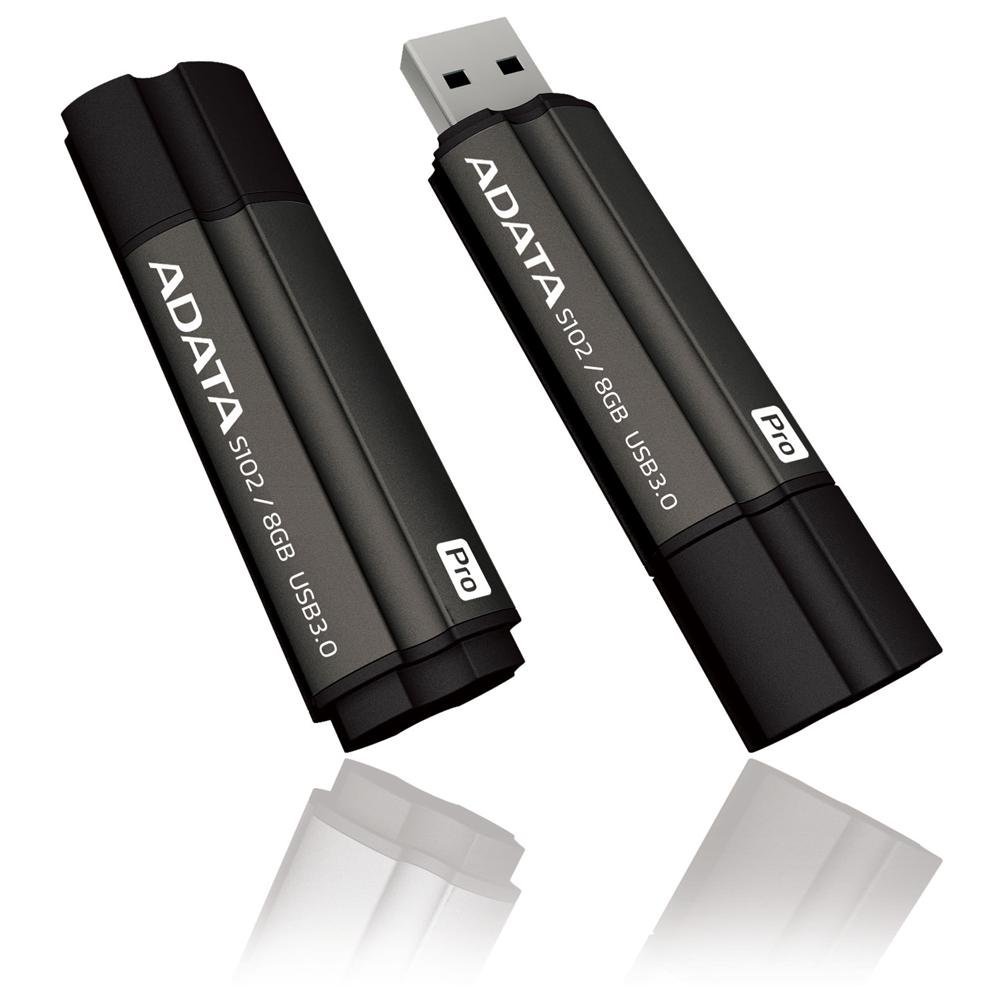
Image: The ADATA S102PRO USB Flash Drive shown with its protective cap on and with the cap removed, revealing the USB 3.0 connector. This illustrates the physical appearance and how to prepare the drive for insertion.
Toiminnassa
Once the ADATA S102PRO is recognized by your computer, you can begin transferring files:
- Aseman käyttö:
- Windows: Open "This PC" or "My Computer" and locate the drive listed under "Devices and drives" (e.g., "Removable Disk" or a drive letter like E:).
- MacOS: The drive icon will appear on your desktop or in the Finder sidebar under "Locations."
- Siirretään Files:
- Kopioidaksesi files to the flash drive, drag and drop them from your computer's folders into the flash drive's window.
- Kopioidaksesi files alkaen the flash drive, drag and drop them from the flash drive's window to a folder on your computer.
- You can also use the standard copy (Ctrl+C / Command+C) and paste (Ctrl+V / Command+V) functions.
- Aseman poistaminen turvallisesti: On erittäin tärkeää poistaa muistitikku turvallisesti ennen sen fyysistä irrottamista tietojen vioittumisen estämiseksi.
- Windows: Click the "Safely Remove Hardware and Eject Media" icon in the system tray (bottom-right corner), then select your flash drive and click "Eject." Wait for the "Safe to Remove Hardware" message.
- MacOS: Drag the drive icon from the desktop to the Trash, or click the Eject button next to the drive name in the Finder sidebar. Wait for the icon to disappear before removing the drive.
Huolto
Proper care will help ensure the longevity and reliability of your ADATA S102PRO USB Flash Drive:
- Protect the Connector: Always keep the protective cap on the USB connector when the drive is not in use to prevent dust, dirt, and physical damage.
- Vältä äärimmäisiä olosuhteita: Do not expose the drive to extreme temperatures, direct sunlight, high humidity, or strong magnetic fields.
- Käsittele varovasti: Vältä aseman pudottamista tai sen altistamista voimakkaille iskuille.
- Do Not Remove During Transfer: Never unplug the drive while data is being read from or written to it. Always follow the safe removal procedure.
- Säännölliset varmuuskopiot: While flash drives are reliable, it is always recommended to back up critical data to another storage device or cloud service.
Vianetsintä
If you encounter issues with your ADATA S102PRO, try the following solutions:
- Asemaa ei tunnistettu:
- Varmista, että asema on työnnetty kokonaan USB-porttiin.
- Kokeile toista tietokoneesi USB-porttia.
- Testaa asemaa toisella tietokoneella sulkeaksesi pois tietokonekohtaisen ongelman.
- Tarkista tietokoneesi Laitehallinnasta (Windows) tai Järjestelmätiedoista (macOS), onko asema luettelossa, vaikka se ei näkyisikään. File Tutkimusohjelma/Etsintäohjelma.
- Hitaat siirtonopeudet:
- Ensure you are connected to a USB 3.0 port for optimal performance. USB 2.0 ports will limit speeds.
- Monien pienten siirto filevoi olla hitaampaa kuin muutaman suuren siirtäminen files.
- Sulje muut sovellukset, jotka saattavat käyttää järjestelmäresursseja tai suorittaa levytoimintoja.
- Ei voi kirjoittaa Files ajaa:
- Tarkista, onko asema täynnä. Poista tarpeettomat tiedostot. filetai siirrä ne toiseen paikkaan.
- Varmista, että file system (e.g., FAT32, NTFS, exFAT) is compatible with your operating system and allows writing. If formatted as NTFS on macOS, you may only have read access without third-party software.
- Check for any software-based write protection or permissions issues on your computer.
Tekniset tiedot
| Merkki | TIEDOT |
| Mallin nimi | S102PRO |
| Mallinumero | AT806-4G-CPK |
| Muistin tallennuskapasiteetti | 4 Gt |
| Laitteistorajapinta | USB 3.0 (taaksepäin yhteensopiva USB 2.0:n kanssa) |
| Valmistaja | A-DATA TECHNOLOGY (USA) CO. L |
| UPC | 842243005080 |
| ASIN | B004AVOGW8 |
Takuu ja tuki
For detailed warranty information, product registration, and technical support, please visit the official ADATA websivusto. Sieltä löytyy yleensä tukiresursseja, usein kysyttyjä kysymyksiä ja asiakaspalvelun yhteystietoja.
ADATA Official Websivusto: www.adata.com